
BenQ EX3501R
BenQ EX3501R Ultrawide Curved Gaming Monitor User Manual
Model: EX3501R
1. Persediaan
1.1 Membongkar Monitor
Keluarkan semua komponen dari pembungkusan dengan berhati-hati. Pastikan semua item yang disenaraikan di bawah ada:
- BenQ EX3501R Monitor
- Stand Monitor (Asas dan Leher)
- Penyesuai Kuasa
- Kord Kuasa
- Kabel HDMI
- DisplayPort Cable
- Kabel USB-C
- Manual Pengguna (dokumen ini)
1.2 Memasang Pendirian
Ikuti langkah ini untuk memasang dirian pada monitor anda:
- Letakkan monitor menghadap ke bawah pada kain lembut dan bersih untuk mengelakkan calar.
- Attach the stand neck to the back of the monitor. Ensure it clicks securely into place.
- Connect the stand base to the neck, tightening any screws as indicated in the quick start guide.

Rajah 1: Depan view of the BenQ EX3501R monitor with its stand.
1.3 Menyambung Kabel
Connect the necessary cables to the monitor and your computer. The monitor supports various input options:
- Kuasa: Sambungkan penyesuai kuasa ke monitor dan kemudian ke soket kuasa.
- Input Video: Use either the HDMI, DisplayPort, or USB-C cable to connect your computer to the monitor.
- USB-C: The USB-C port supports video, data transfer, and power delivery, allowing for a single-cable connection with compatible devices.
- Port USB 3.0: Utilize the integrated USB 3.0 ports for connecting peripherals.
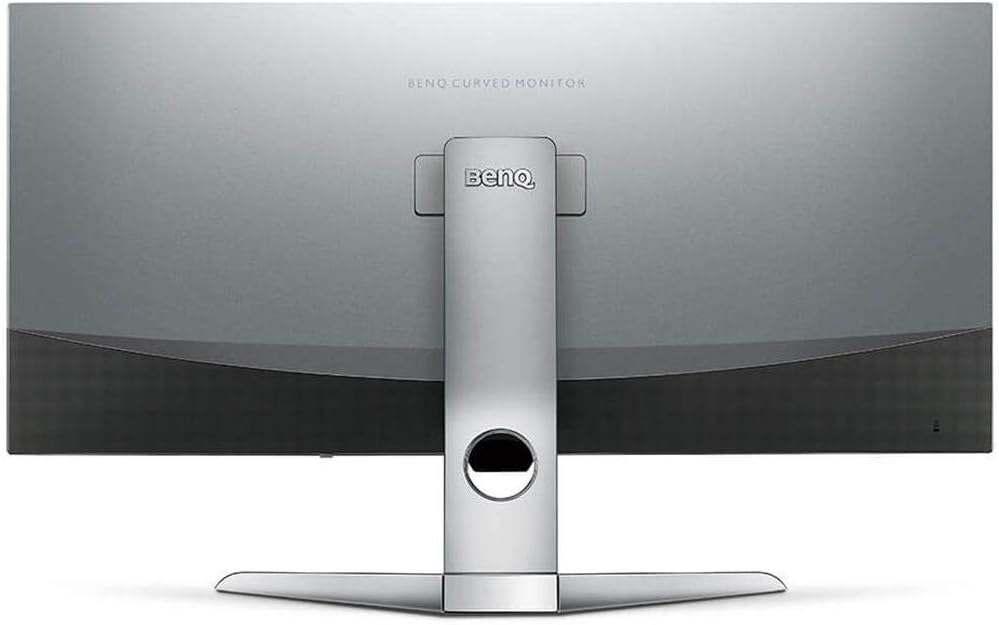
Rajah 2: Belakang view of the monitor displaying the connectivity ports.
2. Mengendalikan Monitor
2.1 Hidupkan/Mati Kuasa
Press the power button, usually located on the bottom right side of the monitor, to turn it on or off. The power indicator light will illuminate when the monitor is active.
2.2 Navigasi Paparan Atas Skrin (OSD)
Use the joystick or buttons located on the monitor's underside to navigate the On-Screen Display (OSD) menu. This menu allows you to adjust various settings such as brightness, contrast, color modes, and input sources.
2.3 Display Features and Eye-Care Technology
The BenQ EX3501R incorporates several technologies designed to enhance viewing experience and reduce eye strain:
- Kecerdasan Kecerahan Plus (BI+): This patented technology automatically senses ambient lighting conditions and adjusts the screen's brightness and color temperature to provide optimal viewing comfort and protect your eyes during extended use.
- Cahaya Biru Rendah: Filters out harmful blue light emissions to reduce eye fatigue. Multiple levels of blue light reduction are available.
- ZeroFlicker™: Eliminates screen flickering at all brightness levels, further reducing eye strain and discomfort.
- HDR (Julat Dinamik Tinggi): Offers enhanced brightness and contrast, bringing greater detail and vibrancy to HDR video content.
Video 1: Tamatview of BenQ's Eye-Care technology, including Low Blue Light, ZeroFlicker, and Brightness Intelligence Plus, demonstrating how these features work to reduce eye strain and adjust screen settings automatically based on ambient light.
2.4 Resolusi dan Kadar Penyegaran
The monitor features a QHD (3440x1440) resolution and a 100Hz refresh rate, providing a smooth and detailed visual experience. The 21:9 ultrawide aspect ratio offers ample screen space for multitasking, such as viewing multiple documents side-by-side without needing a second monitor.
2.5 AMD FreeSync
For a fluid gaming experience, the monitor supports AMD FreeSync technology, which synchronizes the monitor's refresh rate with your graphics card's frame rate to eliminate screen tearing and stuttering.
3. Penyelenggaraan
3.1 Membersihkan Monitor
To maintain optimal performance and appearance, regularly clean your monitor:
- Skrin: Gently wipe the screen with a soft, lint-free cloth. For stubborn smudges, use a monitor-specific cleaning solution applied to the cloth, not directly to the screen.
- Luaran: Use a soft, dry cloth to wipe dust and debris from the monitor casing dan berdiri.
Avoid using abrasive cleaners, waxes, or solvents as they can damage the monitor's surface.
3.2 Petua Penjagaan Umum
- Do not block ventilation openings on the monitor.
- Elakkan meletakkan monitor di bawah cahaya matahari langsung atau berhampiran sumber haba.
- Kendalikan monitor dengan berhati-hati untuk mengelakkan kerosakan fizikal.
4. Penyelesaian masalah
If you encounter issues with your BenQ EX3501R monitor, refer to the following common troubleshooting steps:
4.1 Tiada Paparan atau Skrin Hitam
- Pastikan kabel kuasa disambungkan dengan selamat ke kedua-dua monitor dan salur keluar kuasa.
- Sahkan bahawa kabel video (HDMI, DisplayPort atau USB-C) disambungkan dengan kukuh pada monitor dan komputer anda.
- Periksa sama ada sumber input yang betul dipilih dalam menu OSD monitor.
- Mulakan semula komputer anda.
4.2 Flickering or Unstable Image
- Ensure the ZeroFlicker™ feature is enabled in the OSD menu.
- Check for loose video cable connections.
- Kemas kini pemacu kad grafik anda kepada versi terkini.
- If using AMD FreeSync, ensure it is properly configured in your graphics card settings.
4.3 Color or Brightness Issues
- Laraskan tetapan kecerahan, kontras dan warna melalui menu OSD.
- Enable or disable Brightness Intelligence Plus (B.I.+) to see if it resolves the issue.
- Perform a factory reset through the OSD menu.
5. Spesifikasi
Key technical specifications for the BenQ EX3501R monitor:
| Ciri | Spesifikasi |
|---|---|
| Saiz Skrin | 35 Inci |
| Resolusi Skrin Maks | 3440 x 1440 Pixels (QHD Ultrawide) |
| Nisbah Aspek | 21:9 |
| Kadar Segar Semula | 100 Hz |
| Kelengkungan | 1800R |
| Jenis Panel | VA (Penjajaran Menegak) |
| Ketersambungan | USB-C, HDMI, DisplayPort |
| Ciri Khas | AMD FreeSync, Brightness Intelligence Plus, Low Blue Light, ZeroFlicker |
| Berat Barang | 21.3 paun |
| Dimensi Produk | 6.88 x 3.47 x 12.93 inci |
6. Waranti dan Sokongan
6.1 Waranti Produk
The BenQ EX3501R monitor typically comes with a 3-year manufacturer's warranty. Please refer to the warranty card included in your product packaging for specific terms and conditions, or visit the official BenQ weblaman web untuk maklumat jaminan terperinci.
6.2 Sokongan Pelanggan
For further assistance, technical support, or warranty claims, please contact BenQ customer service. You can find contact information and support resources on the official BenQ webtapak: www.benq.com/en-us/support.html