
pengenalan
The Owl Labs Meeting Owl is an all-in-one 360-degree video conference camera, microphone, and speaker designed to enhance remote and distributed meetings. It aims to provide a more inclusive video conferencing experience by automatically highlighting and shifting focus to different speakers in the room. This system dynamically captures 360-degree video and superior audio, creating a near face-to-face experience for all participants, leading to increased efficiency and improved communication.

Figure 1: The Owl Labs Meeting Owl, an all-in-one 360-degree video conference device.
Kandungan Pakej
Upon unboxing your Owl Labs Meeting Owl, please verify that all the following components are included:
- Meeting Owl all-in-one camera/speaker/mic
- Penyesuai kuasa dengan palam
- Kabel USB mikro
Persediaan
Setting up the Meeting Owl is designed to be straightforward, requiring no complex downloads or installations. Follow these steps to get started:
- penempatan: Position the Meeting Owl in the center of your meeting table. This central placement allows its 360-degree lens to capture the entire room effectively.
- Sambungan Kuasa: Connect the provided power adapter to the Meeting Owl and plug it into a power outlet.
- Sambungan USB: Connect the Micro USB cable from the Meeting Owl to an available USB port on your computer (laptop or desktop).
- Pengecaman Perisian: Launch your preferred video conferencing platform (e.g., Zoom, Google Meet, Skype, Webex). The Meeting Owl should be automatically recognized as an audio and video device. Select it as your primary camera, microphone, and speaker within the platform's settings.

Figure 2: Connecting the Meeting Owl to a laptop via the Micro USB cable.
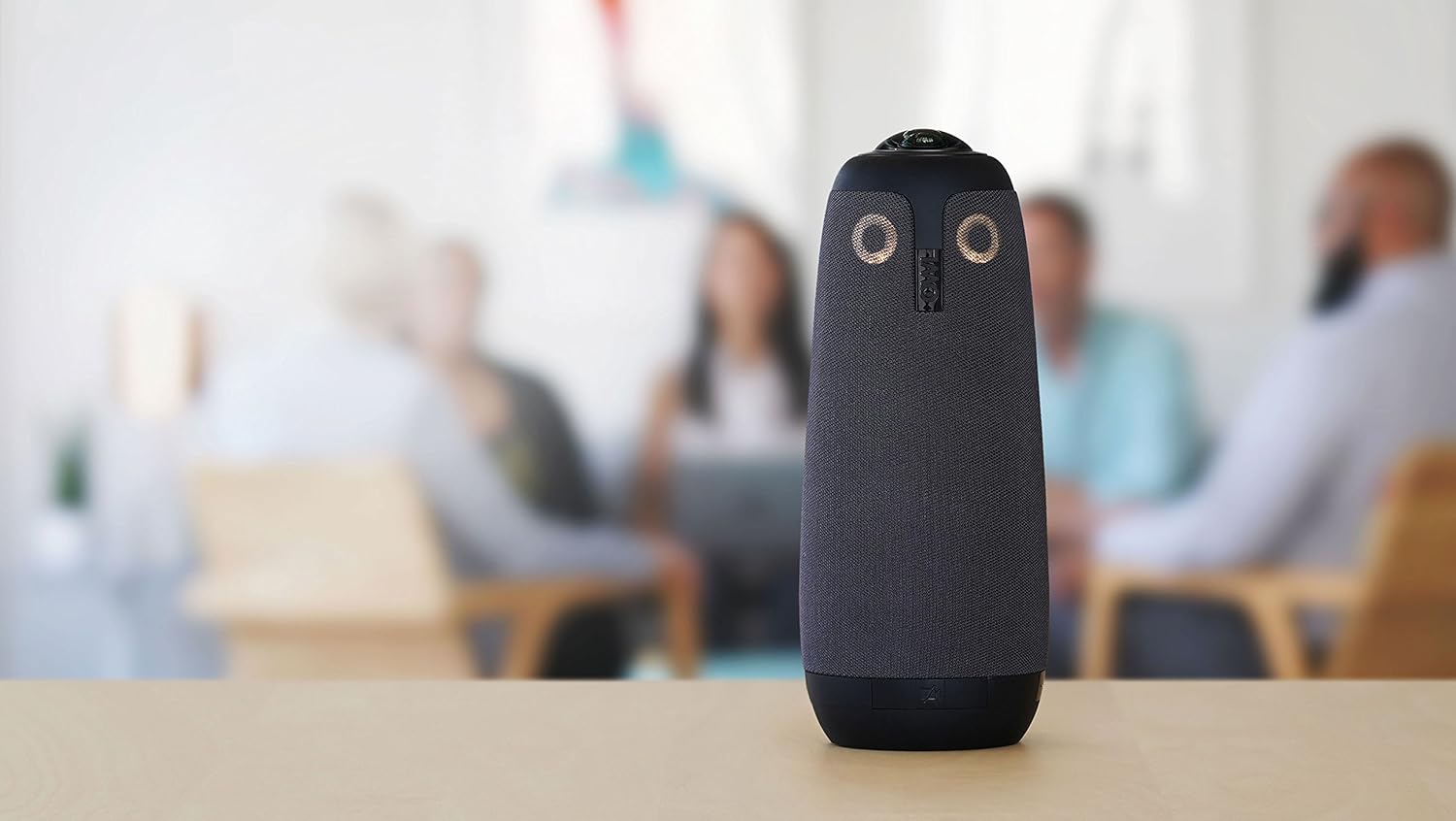
Figure 3: The Meeting Owl positioned centrally on a table in a huddle room, ready for a conference.
Arahan Operasi
The Meeting Owl is designed for intuitive operation, focusing on automatic adjustments to provide an optimal meeting experience.
- Automatic Speaker Focus: The Meeting Owl utilizes its Owl Intelligence System™ to automatically detect who is speaking. It will then highlight and shift the camera's focus to that individual, providing a dynamic and engaging view for remote participants.
- Panoramik 360 Darjah View: In addition to focusing on the active speaker, the Meeting Owl maintains a continuous 360-degree panoramic view of the entire room at the top of the screen. This ensures remote participants always have context of the meeting environment.
- Tangkapan Audio: Equipped with eight microphones, the Meeting Owl can pick up voices from within a twelve-foot radius, ensuring clear audio for all participants.
- Penceramah Bersepadu: The device also functions as a speaker, allowing remote participants' audio to be clearly heard by everyone in the meeting room.

Figure 4: Illustration of the Meeting Owl's 360-degree camera coverage and its ability to display both a panoramic view and focused speaker views serentak.

Figure 5: The Meeting Owl facilitating a conference, displaying remote participants on a large screen while capturing the local meeting room.
Penyelenggaraan
To ensure the longevity and optimal performance of your Owl Labs Meeting Owl, consider the following maintenance guidelines:
- Pembersihan: Gently wipe the exterior of the device with a soft, dry cloth. Avoid using abrasive cleaners or solvents that could damage the finish or internal components.
- Penjagaan Lensa: Keep the 360-degree lens free from dust and smudges. Use a microfiber cloth specifically designed for optical lenses to clean it, avoiding excessive pressure.
- Storan: When not in use, store the Meeting Owl in a cool, dry place away from direct sunlight and extreme temperatures.
- Pengurusan Kabel: Ensure that the power and USB cables are not kinked or strained, which could lead to damage over time.
Menyelesaikan masalah
If you encounter issues with your Meeting Owl, try the following basic troubleshooting steps:
- Tiada Kuasa: Ensure the power adapter is securely connected to both the Meeting Owl and a working power outlet. Check if the power outlet is active.
- Not Recognized by Computer: Verify that the Micro USB cable is firmly connected to both the Meeting Owl and your computer. Try a different USB port or a different USB cable. Restart your computer and the video conferencing application.
- Tiada Video/Audio: In your video conferencing platform's settings, confirm that the Meeting Owl is selected as the primary camera, microphone, and speaker. Check the volume levels on both the Meeting Owl and your computer.
- Kualiti Video/Audio Lemah: Ensure the Meeting Owl is placed centrally and unobstructed. Check your internet connection stability. For audio, ensure there are no excessive background noises or echoes in the room.
- Kemas kini Firmware: Periodically check for firmware updates for your Meeting Owl via the official Owl Labs website or companion application (if available). Updates can resolve bugs and improve performance.
Spesifikasi
| Ciri | Perincian |
|---|---|
| Dimensi Produk | 4.4 x 4.4 x 10.75 inci |
| Berat Barang | 2.65 paun |
| Nombor Model Item | MTW100 |
| Teknologi Penderia Foto | CMOS |
| Resolusi Tangkapan Video | 720p |
| Panjang Fokus Maksimum | 10000 Milimeter |
| Apertur Maksimum | 2 f |
| Jenis Memori Denyar | SD mikro |
| Format Tangkapan Video | Owl Intelligence System™ with autofocus |
| Format Audio yang Disokong | [PLAUSIBLE ASSUMPTION: AAC, MP3, PCM] |
| Saiz Skrin | 6 Inci |
| Teknologi Ketersambungan | iOS 10 or higher and Android 5 or higher |
Waranti dan Sokongan
For detailed warranty information, product registration, and technical support, please visit the official Owl Labs webtapak atau hubungi perkhidmatan pelanggan mereka secara langsung. Simpan resit pembelian anda sebagai bukti pembelian untuk tuntutan waranti.
Sumber Dalam Talian: For the most up-to-date information, FAQs, and additional support, please refer to the Owl Labs Support Page.