
1. Pengenalan
This manual provides detailed instructions for the installation, configuration, and operation of your Multilaser RE058 150Mbps Wireless Router. Please read this manual carefully before using the device to ensure proper setup and optimal performance. This router offers wireless connectivity at 150Mbps, features a detachable antenna, and includes four LAN ports for wired connections.
2. Kandungan Pakej
Sahkan bahawa semua item terdapat dalam pakej anda:
- 1x Multilaser RE058 150Mbps Wireless Router
- 1x Power Adapter (Bivolt)
- 1x Kabel Ethernet RJ45
- 1x Detachable Antenna (5 dBi)
- Panduan Pemasangan Pantas 1x
3. Produk Lebihview
Biasakan diri anda dengan port dan penunjuk penghala.
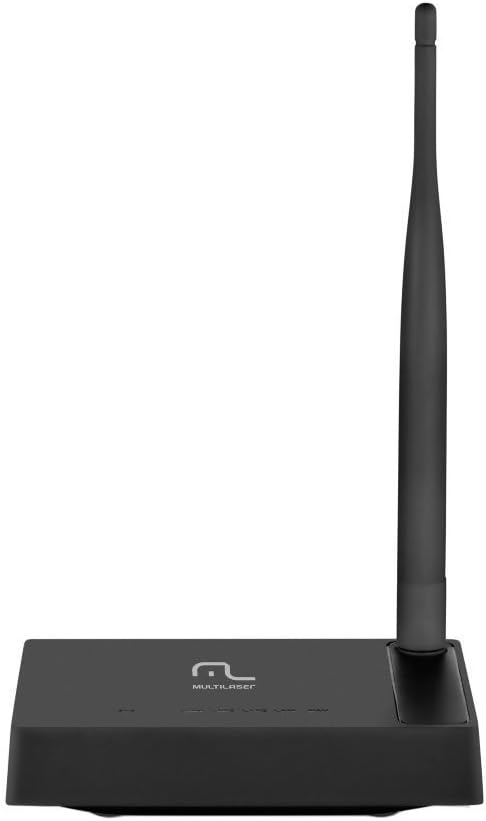
Imej 3.1: Belakang view of the Multilaser RE058 router, highlighting the WAN port (blue), four LAN ports (yellow/orange), and the power input. The detachable antenna is connected on the left side.
3.1. Penunjuk Panel Hadapan
- PWR: Power indicator. Lit when the device is powered on.
- WAN: Wide Area Network indicator. Lit when connected to the internet. Blinks during data transmission.
- LAN1-LAN4: Local Area Network indicators. Lit when a device is connected to the corresponding LAN port. Blinks during data transmission.
3.2. Port Panel Belakang
- Pelabuhan WAN (Biru): Menyambung ke modem anda atau rangkaian pembekal perkhidmatan internet.
- Port LAN (1-4): Menyambung ke peranti berwayar seperti komputer, konsol permainan atau TV pintar.
- Input Kuasa: Menyambung kepada penyesuai kuasa yang disediakan.
- Penyambung Antena: For attaching the detachable antenna.
- Butang Tetapkan Semula: Used to restore factory default settings. Press and hold for approximately 5-10 seconds while the router is powered on.
4. Persediaan
Follow these steps to set up your Multilaser RE058 router:
- Sambungkan Antena: Screw the detachable antenna clockwise onto the antenna connector at the back of the router until it is secure.
- Sambungkan ke Modem: Use the provided RJ45 Ethernet cable to connect your modem's LAN port to the blue WAN port pada penghala.
- Hidupkan kuasa: Connect the power adapter to the router's power input and then plug the adapter into an electrical outlet. The PWR indicator should light up.
- Connect Devices (Optional Wired): For wired connections, use additional Ethernet cables to connect your computers or other devices to the yellow LAN ports (1-4) pada penghala.
- Tunggu untuk Permulaan: Allow a few minutes for the router to power on and initialize. The WAN indicator should light up, indicating an internet connection.
- Akses Antara Muka Penghala: Buka a web browser on a connected computer or device. In the address bar, type the router's default IP address (usually
192.168.0.1or192.168.1.1) and press Enter. Refer to the Quick Installation Guide for the exact default IP and login credentials. - Konfigurasi Awal: Follow the on-screen instructions in the router's web interface to set up your internet connection type (DHCP, Static IP, PPPoE, etc.) and configure your wireless network (SSID and password). The router software is available in Portuguese for easier setup.
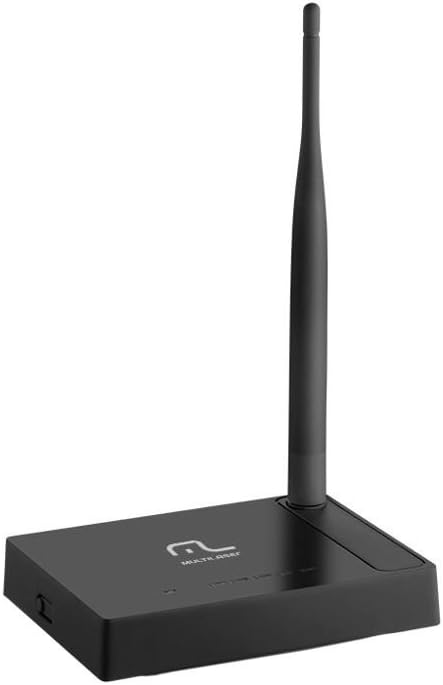
Imej 4.1: Sisi view of the Multilaser RE058 router, showing the detachable antenna securely connected and standing upright.
5. Beroperasi
This section covers the basic operation and features of your router.
5.1. Wireless Network (Wi-Fi)
After initial setup, your wireless network will be active. To connect devices:
- Pada peranti anda (telefon pintar, komputer riba, tablet), cari rangkaian Wi-Fi yang tersedia.
- Select the Network Name (SSID) you configured during setup.
- Masukkan kata laluan Wi-Fi (kunci keselamatan) apabila digesa.
5.2. Rangkaian Berwayar
Devices connected to the LAN ports will automatically obtain an IP address from the router and gain internet access (if the WAN connection is active).
5.3. Fungsi Pengulang
The Multilaser RE058 can function as a wireless repeater to extend the range of an existing Wi-Fi signal. This mode needs to be configured via the router's web interface. Consult the full user manual or the router's online help for detailed steps on configuring repeater mode.
5.4. Ciri Lanjutan
Penghala itu web interface provides access to advanced settings, including:
- Jenis WAN: DHCP, Static IP, PPPoE, L2TP, PPTP, Dual Access, WISP.
- Virtual Servers, Port Triggering, UPnP, DMZ: For advanced network configurations and port forwarding.
- Kawalan Akses: IP/MAC/Domain Filtering to manage network access.
- Laluan VPN: PPTP, L2TP, IPSec for VPN connections.
- Dynamic DNS, Static Routing, WOL (Wake-on-LAN): Additional network utilities.
- Kemas kini Firmware: Keep your router's software up-to-date for improved performance and security.
6. Penyelenggaraan
Untuk memastikan ketahanan dan prestasi optimum penghala anda:
- Keep the router in a cool, dry place, away from direct sunlight and heat sources.
- Pastikan pengudaraan yang betul di sekeliling peranti.
- Bersihkan bahagian luar dengan kain lembut dan kering. Jangan gunakan pembersih cecair.
- Regularly check for and install firmware updates from the Multilaser website to enhance security and features.
- Periodically restart the router (unplug and replug the power adapter) to refresh its connection and clear temporary issues.
7. Penyelesaian masalah
Jika anda menghadapi masalah, cuba penyelesaian biasa ini:
7.1. Tiada Akses Internet
- Check all cable connections (WAN, LAN, Power). Ensure they are securely plugged in.
- Pastikan modem anda berfungsi dengan betul dan mempunyai sambungan internet yang aktif.
- Restart both your modem and router. Unplug their power adapters, wait 30 seconds, then plug the modem back in. Once the modem is fully online, plug the router back in.
- Log masuk ke penghala web interface and check the WAN status. Ensure your internet connection type (DHCP, PPPoE, etc.) is correctly configured.
7.2. Tidak Dapat Menyambung ke Wi-Fi
- Ensure the router is powered on and the wireless indicator is active.
- Verify you are selecting the correct Wi-Fi network (SSID) and entering the correct password.
- Move closer to the router to rule out range issues.
- Cuba mulakan semula penghala.
7.3. Kelajuan Internet Perlahan
- Ensure your router is placed in a central location, away from obstructions and interference sources (e.g., microwaves, cordless phones).
- Check if multiple devices are heavily using the network.
- Kemas kini firmware penghala anda.
- Contact your Internet Service Provider (ISP) to check your internet line speed.
7.4. Forgot Router Login Password
If you forget the router's login password, you can perform a factory reset. Locate the Reset button on the rear panel. With the router powered on, use a paperclip or similar pointed object to press and hold the Reset button for approximately 5-10 seconds until the indicators flash. The router will restart with factory default settings, and you can then log in using the default credentials (usually found on a sticker on the router or in the Quick Installation Guide).
8. Spesifikasi
| Ciri | Perincian |
|---|---|
| Jenama | Multilaser |
| Model | RE058 |
| Piawaian Tanpa Wayar | IEEE 802.11b, IEEE 802.11g, IEEE 802.11n |
| Jalur Kekerapan | 2.4 - 2.4835 GHz (Single-Band) |
| Kadar Pemindahan Data | Sehingga 150 Mbps |
| Antena | 1x Detachable, 5 dBi |
| Pelabuhan Ethernet | 1x 10/100Mbps Auto MDI/MDIX RJ45 WAN Port, 4x 10/100Mbps Auto MDI/MDIX RJ45 LAN Ports |
| Bekalan Kuasa | DC 9V/500mA (Output), Bivolt input |
| Kuasa Penghantaran | 20dBm (MAX) |
| Peranti Serasi | Notebook, Smartphone, Tablet |
| Ciri-ciri Perisian | DHCP, Static IP, PPPoE, L2TP, PPTP, Dual Access, WISP, Virtual Servers, Port Triggering, UPnP, DMZ, FTP Private Port, Access Control (IP/MAC/Domain Filtering), VPN Pass-through, Dynamic DNS, Static Routing, WOL, Backup & Restore, Firmware Update. |
9. Waranti dan Sokongan
This Multilaser RE058 Wireless Router comes with a Waranti 7 tahun yang disediakan oleh pengilang. Sila simpan bukti pembelian anda untuk tuntutan jaminan.
For technical support, troubleshooting assistance, or warranty inquiries, please contact Multilaser customer service. Refer to the official Multilaser website or the Quick Installation Guide for up-to-date contact information.