
1. Pengenalan
Thank you for choosing the Multilaser TC190 2.4 GHz Wireless Keyboard with Integrated Touchpad. This device is designed to provide a convenient and efficient input solution for your PC or Smart TV, combining a full keyboard with a multi-touch touchpad. This manual will guide you through the setup, operation, and maintenance of your new keyboard to ensure optimal performance and longevity.
2. Maklumat Keselamatan
- Jauhkan peranti daripada air, kelembapan dan suhu yang melampau.
- Jangan cuba membuka atau membaiki peranti ini sendiri. Rujuk semua servis kepada kakitangan yang berkelayakan.
- Use only specified batteries (if applicable) and dispose of them properly.
- Elakkan daripada menjatuhkan atau meletakkan peranti kepada kesan yang kuat.
- Bersihkan peranti dengan kain lembut dan kering. Jangan gunakan pembersih cecair atau aerosol.
3. Kandungan Pakej
Sila semak kandungan bungkusan dengan teliti. Jika ada barang yang hilang atau rosak, hubungi peruncit anda.
- Multilaser TC190 Wireless Keyboard with Integrated Touchpad
- USB 2.4 GHz Receiver
- Manual Pengguna
- (Batteries may or may not be included depending on the region/retailer)
4. Produk Lebihview
Familiarize yourself with the components of your Multilaser TC190 keyboard.
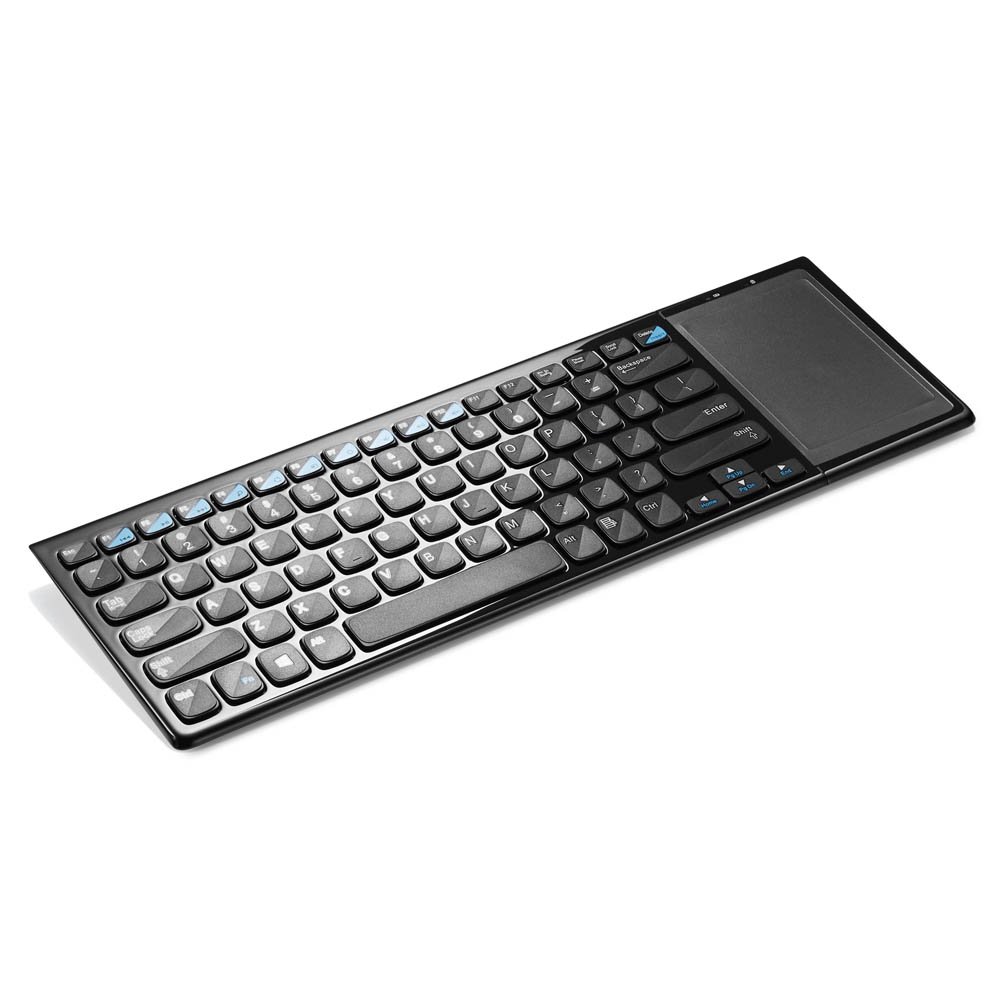
Rajah 1: Multilaser TC190 Wireless Keyboard with Integrated Touchpad. This image shows the full keyboard layout with the touchpad located on the right side, indicating its compact design and integrated functionality.
- Susun atur Papan Kekunci: Standard QWERTY layout with multimedia function keys.
- Pad Sentuh Bersepadu: Located on the right side, supporting multi-touch gestures.
- Petak Penerima USB: Usually located in the battery compartment for storage.
- Suis kuasa: On/Off switch to conserve battery life.
- Petak Bateri: For inserting required batteries.
5. Persediaan
- Pasang Bateri: Open the battery compartment cover on the back of the keyboard. Insert the required batteries (typically AAA, refer to the compartment for exact type and polarity). Close the cover securely.
- Sambungkan Penerima USB: Locate the USB 2.4 GHz receiver, usually stored inside the battery compartment. Plug the USB receiver into an available USB port on your PC or Smart TV.
- Hidupkan kuasa: Slide the power switch on the keyboard to the "ON" position.
- Sambungan Automatik: The keyboard should automatically connect to your device within a few seconds. No additional drivers are typically required for most operating systems.
6. Arahan Operasi
6.1. Fungsi Papan Kekunci
The Multilaser TC190 features a standard keyboard layout. Use the keys as you would with any conventional keyboard for typing text, navigating menus, and executing commands.
- Kekunci Fungsi (Fn): Some keys may have secondary functions (e.g., volume control, media playback) accessible by pressing the Fn kekunci serentak dengan kekunci fungsi yang dikehendaki.
- Kekunci Multimedia: Dedicated multimedia keys (if present) allow quick access to media controls.
6.2. Fungsi pad sentuh
The integrated multi-touch touchpad replaces a traditional mouse. Below are common gestures:
- Ketik Satu Jari: Klik kiri.
- Ketik Dua Jari: Klik kanan.
- Seretan Jari Tunggal: Gerakkan kursor.
- Tatal Dua Jari: Tatal ke atas atau ke bawah dalam dokumen dan web muka surat.
- Cubit untuk Zum: Use two fingers to zoom in or out (application dependent).
7. Penyelenggaraan
- Pembersihan: Use a soft, lint-free cloth to wipe the keyboard and touchpad. For stubborn dirt, slightly dampen the cloth with water or a mild, non-abrasive cleaner. Ensure no liquid enters the device.
- Penggantian Bateri: When the keyboard's performance degrades or it stops responding, replace the batteries. Always use fresh batteries of the correct type.
- Storan: If storing the keyboard for an extended period, remove the batteries to prevent leakage. Store in a cool, dry place.
8. Penyelesaian masalah
| Masalah | Penyelesaian yang Mungkin |
|---|---|
| Papan kekunci tidak bertindak balas. |
|
| Touchpad is not working correctly. |
|
| Connection issues / Lag. |
|
9. Spesifikasi
| Ciri | Perincian |
|---|---|
| Jenama | Multilaser |
| Model | TC190 |
| Ketersambungan | Tanpa Wayar 2.4 GHz (Penerima USB) |
| Peranti Serasi | PC, TV Pintar |
| Penerangan Papan Kekunci | Multimedia |
| Ciri Khas | Wireless, Integrated Multi-touch Touchpad |
| Sumber Kuasa | Dikuasakan Bateri |
| Berat Barang | 800 Gram |
10. Waranti dan Sokongan
Multilaser products are manufactured to high-quality standards. For information regarding warranty terms and conditions, please refer to the warranty card included with your product or visit the official Multilaser website. For technical support or customer service, please contact Multilaser customer support through their official channels.
rasmi Webtapak: www.multilaser.com.br (Sila semak untuk wilayah anda webtapak)