
JideTech JD-41UA
Manual Pengguna Suis VGA KVM JideTech 4-Port
Model: JD-41UA
1. Pengenalan
The JideTech 4-Port VGA KVM Switch with USB Hub and Audio allows you to control up to four computers using a single set of keyboard, mouse, and monitor. This device is designed for efficiency, enabling seamless switching between systems, making it ideal for home, office, and professional environments. It supports high-definition video output and offers plug-and-play functionality without the need for external power.

Rajah 1.1: JideTech 4-Port VGA KVM Switch and included cables.
2. Ciri-ciri Produk
- Fungsi KVM 4-Port: Control up to four computers with one set of USB keyboard, USB mouse, and VGA monitor.
- Hab USB 2.0 Bersepadu: Share USB peripherals like external hard drives, printers, and scanners among connected computers.
- Audio and Microphone Support: Switch speaker and microphone output between computers.
- High Definition Output: Supports resolutions up to 2048 x 1536, with DDC support and automatic identification for high-quality display.
- Plug-and-Play: No software installation required. The device is bus-powered via USB, eliminating the need for an external power adapter.
- Keserasian Luas: Compatible with Windows 98SE/ME/2000/XP/2003 Server/Vista, Linux, and Mac OS.
- Wireless Device Support: Supports wireless keyboard and mouse (excluding multimedia keyboards and mice).
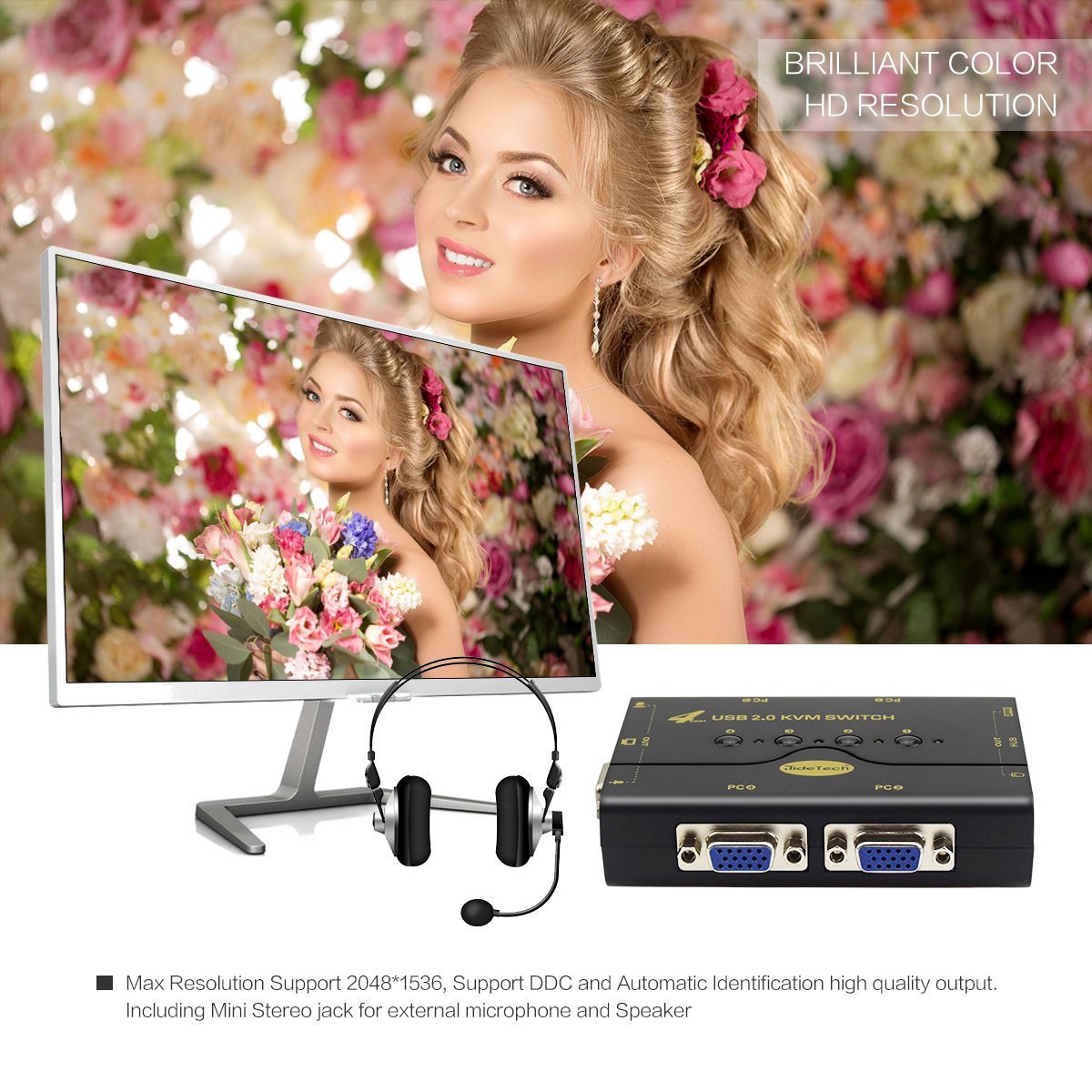
Rajah 2.1: High-definition output capability of the KVM switch.

Rajah 2.2: Versatile application scenarios for the KVM switch.
3. Kandungan Pakej
Sahkan bahawa semua item terdapat dalam pakej anda:
- 1 x JideTech 4-Port USB 2.0 KVM Switch (Model: JD-41UA)
- 4 x 1.2M VGA KVM Cables (integrated USB and audio connectors)
- 1 x User Manual and Warranty Card

Rajah 3.1: Package contents of the JideTech KVM Switch.
4. Arahan Persediaan
Follow these steps to connect your JideTech KVM Switch:
- Matikan Semua Peranti: Ensure all computers, monitors, and peripherals are powered off before making connections.
- Sambung Monitor: Connect your VGA monitor to the "VGA Output" port on the KVM switch.
- Sambungkan Papan Kekunci dan Tetikus: Connect your USB keyboard to the "USB Port (Keyboard)" and your USB mouse to the "USB Port (Mouse)" on the KVM switch.
- Sambung Audio (Pilihan): Connect your speakers to the "Audio Port (Output)" and your microphone to the "Audio Port (Input)" on the KVM switch.
- Sambungkan Komputer: Use the provided KVM cables to connect each computer to the KVM switch.
- Connect the VGA end of the KVM cable to the VGA output of your computer.
- Connect the USB end of the KVM cable to a USB port on your computer.
- Connect the audio (speaker and microphone) jacks of the KVM cable to the corresponding audio ports on your computer.
- Repeat for all computers (PC1, PC2, PC3, PC4) to their respective VGA Input ports on the KVM switch.
- Sambungkan Peranti USB (Pilihan): Connect any additional USB devices (e.g., printer, USB drive) to the "HUB Interface" USB ports on the KVM switch.
- Hidupkan Peranti: Power on your monitor first, then your computers. The KVM switch will draw power from the USB connection.

Rajah 4.1: Detailed connection diagram for the KVM switch.
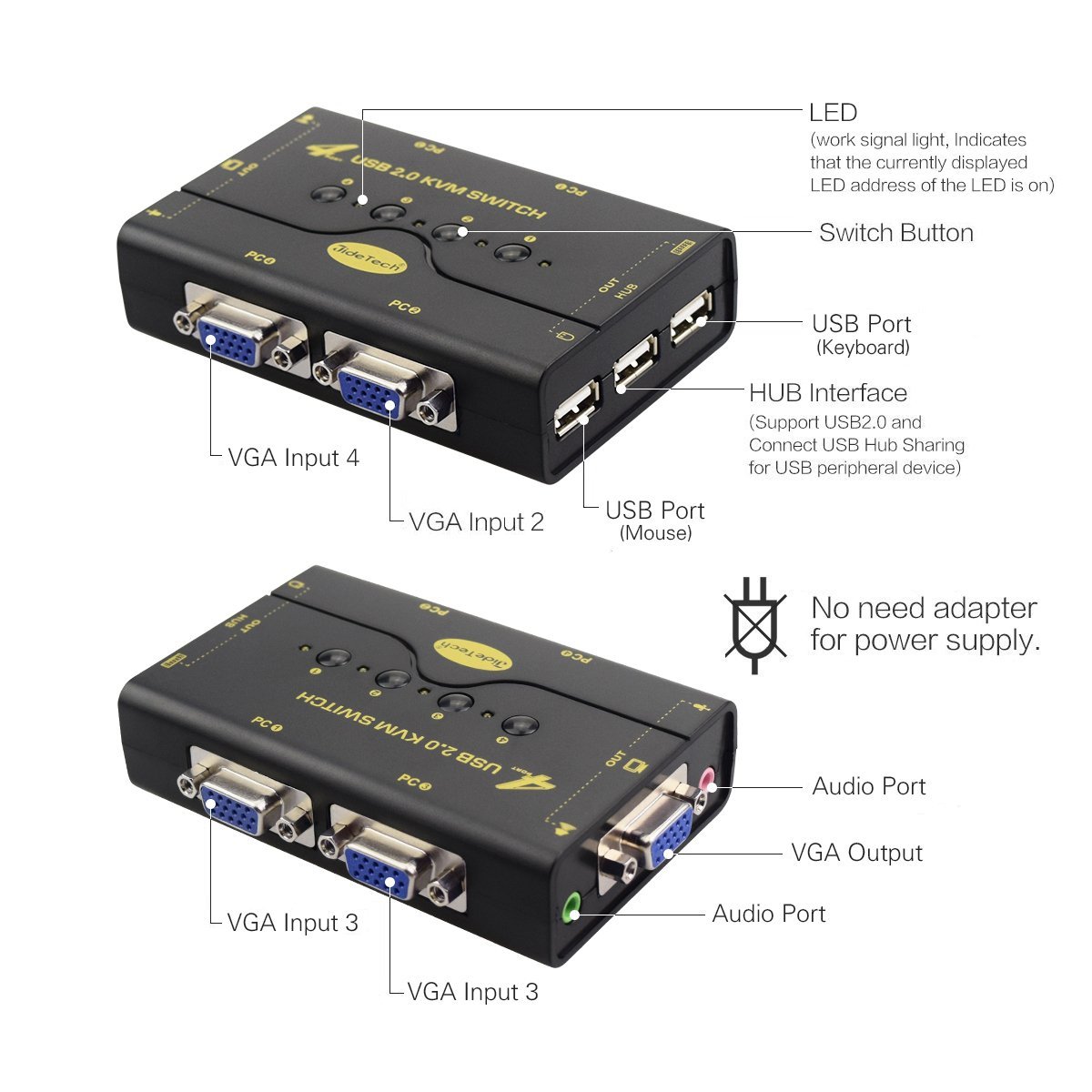
Rajah 4.2: Berakhirview of KVM switch ports and indicators.
5. Arahan Operasi
The JideTech KVM Switch offers simple push-button switching between connected computers.
- Menukar Komputer: To switch between the connected computers, gently press the corresponding numbered "Switch Button" on the top of the KVM device. Each press will cycle through the active ports (PC1, PC2, PC3, PC4).
- Penunjuk LED: The LED indicators above each switch button will illuminate to show which computer is currently selected and active.
- USB Hub Usage: Any USB devices connected to the "HUB Interface" ports will be accessible by the currently selected computer.
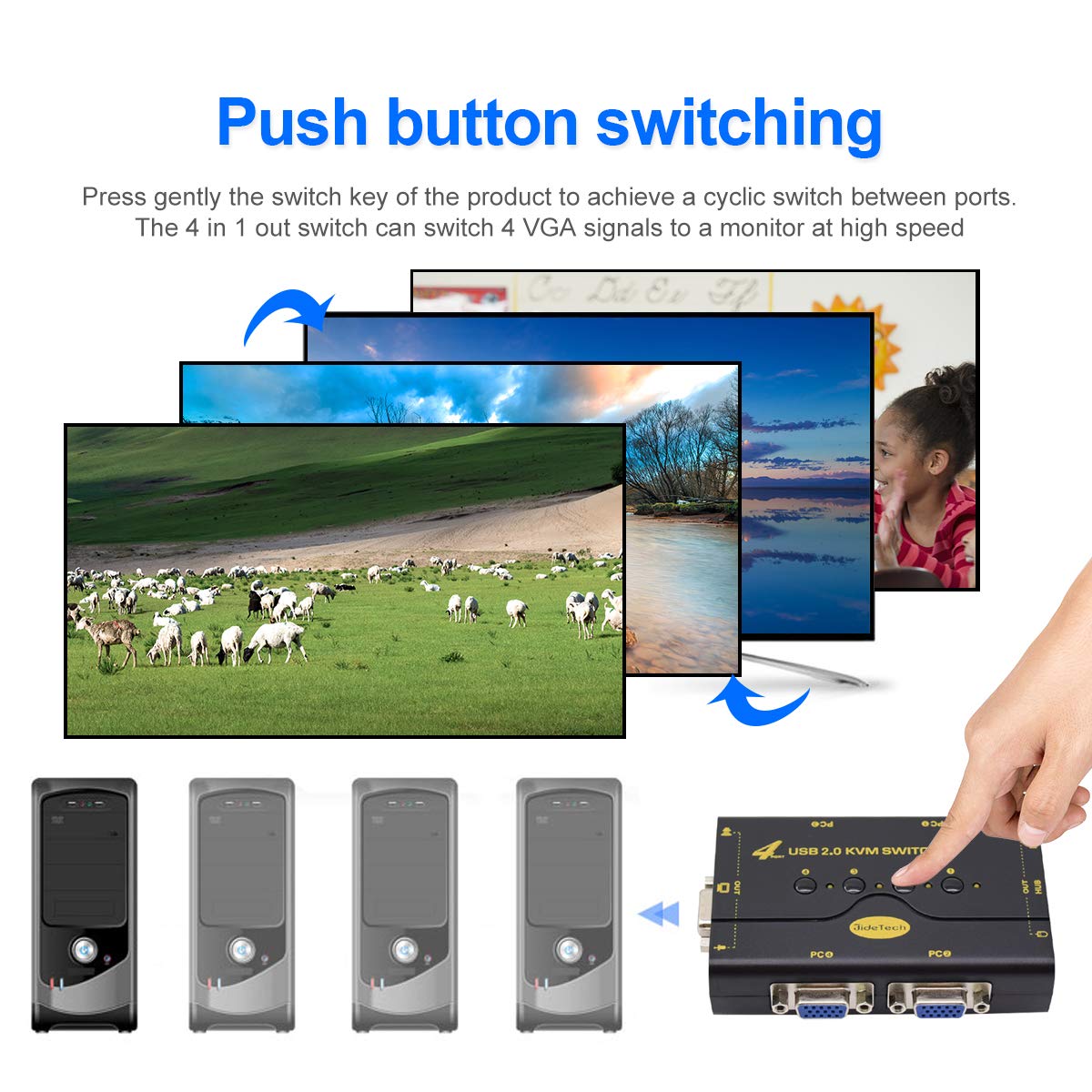
Rajah 5.1: Push-button switching operation.

Rajah 5.2: The KVM switch's integrated USB hub allows sharing of peripherals like printers, USB drives, and scanners.
6. Penyelenggaraan
Untuk memastikan jangka hayat dan prestasi optimum suis KVM anda, ikut garis panduan penyelenggaraan ini:
- Pembersihan: Gunakan kain lembut dan kering untuk membersihkan bahagian luar peranti. Elakkan menggunakan pembersih cecair atau aerosol, yang boleh merosakkan unit.
- Pengudaraan: Pastikan suis KVM diletakkan di kawasan yang mempunyai pengudaraan yang baik untuk mengelakkan terlalu panas. Jangan sekat sebarang bukaan pengudaraan.
- Pengurusan Kabel: Keep cables organized and untangled to prevent damage and ensure stable connections.
- Storan: If storing the device for an extended period, disconnect all cables and store it in a cool, dry place away from direct sunlight and extreme temperatures.
7. Penyelesaian masalah
If you encounter issues with your JideTech KVM switch, refer to the following common troubleshooting steps:
- Tiada Paparan/Skrin Berkelip:
- Pastikan semua kabel VGA disambungkan dengan selamat pada suis KVM dan komputer/monitor.
- Sahkan bahawa monitor telah dihidupkan dan ditetapkan kepada sumber input yang betul.
- Try reducing the display resolution on the computer if it's set too high for the KVM switch's capabilities.
- Restart the connected computers.
- Papan Kekunci/Tetikus Tidak Membalas:
- Ensure the USB cables from the KVM switch are securely connected to the USB ports on the computers.
- Check that the keyboard and mouse are connected to the correct dedicated USB ports on the KVM switch.
- For wireless keyboards/mice, ensure they are compatible (multimedia keyboards/mice may not be fully supported). Try a wired keyboard/mouse to isolate the issue.
- Reconnect the KVM cables to the computers.
- Tiada Audio:
- Sahkan bahawa kabel audio disambungkan dengan betul ke suis KVM dan port audio komputer.
- Check the audio settings on the active computer to ensure the correct output device is selected and volume is not muted.
- Suis KVM Tidak Dihidupkan:
- The KVM switch is bus-powered. Ensure at least one connected computer is powered on and its USB cable is properly connected to the KVM switch.
8. Spesifikasi
| Ciri | Spesifikasi |
|---|---|
| Nombor Model | JD-41UA |
| Jenama | JideTech |
| Dimensi Produk (L x W x H) | 4.98 x 8 x 8 cm (50 x 80 x 80 mm) |
| Berat Barang | 272.16 gram |
| Resolusi Video | Sehingga 2048 x 1536 |
| Hab USB | USB 2.0 |
| Bekalan Kuasa | Bus-powered (no external adapter needed) |
| Sokongan Sistem Pengendalian | Windows 98SE/ME/2000/XP/2003 Server/Vista, Linux, Mac OS |
| bahan | plastik |

Rajah 8.1: Physical dimensions of the KVM switch.
9. Waranti dan Sokongan
JideTech is committed to providing high-quality products and customer satisfaction.
- Penggantian 1 Tahun: JideTech offers a 1-year replacement policy for product defects, with no repair service.
- Sokongan Dalam Talian 24/7: Dedicated one-to-one online support is available around the clock.
- Jaminan Wang Dikembalikan 30 Hari: Jika anda tidak berpuas hati dengan pembelian anda, anda mungkin layak mendapat bayaran balik dalam masa 30 hari.
- Tiada Bayaran Bulanan: There are no recurring fees associated with the use of this product.
- Sokongan Teknikal Seumur Hidup: JideTech provides lifetime technical assistance for this product.
For technical support or warranty claims, please refer to the contact information provided on the warranty card included in your package or visit the official JideTech webtapak.

Rajah 9.1: JideTech customer support and warranty benefits.
Ask a question about this manual
Ask about setup, troubleshooting, compatibility, parts, safety, or missing instructions. Manuals+ will review the question and use this page’s manual context to help answer it.