
1. Pengenalan
This manual provides detailed instructions for the installation, operation, and maintenance of your Tiandy TC-NR4008M7-S2 Network Video Recorder (NVR). This NVR is designed for IP surveillance systems, supporting up to 8 channels at 1080P resolution, and features advanced video analysis and smart recording capabilities. It is ONVIF compatible, ensuring broad compatibility with various IP cameras.
Sila baca manual ini dengan teliti sebelum menggunakan produk untuk memastikan operasi yang betul dan selamat.
2. Maklumat Keselamatan
To prevent electrical hazards and ensure safe operation, observe the following precautions:
- Do not disassemble the equipment yourself. Disassembly and maintenance of the equipment must be carried out by qualified professionals.
- Ensure the NVR is connected to a grounded power source to prevent electric shock.
- Avoid exposing the NVR to moisture, rain, or extreme temperatures.
- Jangan sekat bukaan pengudaraan. Pastikan aliran udara yang mencukupi di sekeliling unit.
- Gunakan hanya penyesuai kuasa yang dibekalkan bersama NVR.
Imej 2.1: Rear panel of the NVR showing various ports and a caution label. The label warns against self-disassembly due to electrical hazard and states that maintenance should be performed by professionals.
3. Produk Lebihview
The Tiandy TC-NR4008M7-S2 NVR is a robust solution for managing your IP surveillance cameras. Key features include:
- Input 8 Saluran: Supports up to 8 IP camera channels.
- 1080P Resolution: Records video at up to 1080P resolution.
- Storan: Accommodates two 3.5-inch SATA hard drives, each up to 4TB (hard drives not included).
- Output Video: HDMI and VGA for local display.
- Port USB: Two USB ports for mouse and data backup.
- Ciri Lanjutan: Video Analysis and Smart Recording capabilities.
- Ketersambungan: Port Ethernet untuk sambungan rangkaian.
- Audio & Penggera: Supports audio input/output and alarm functions.
- Keserasian ONVIF: Ensures interoperability with ONVIF-compliant IP cameras.
3.1 Panel Depan

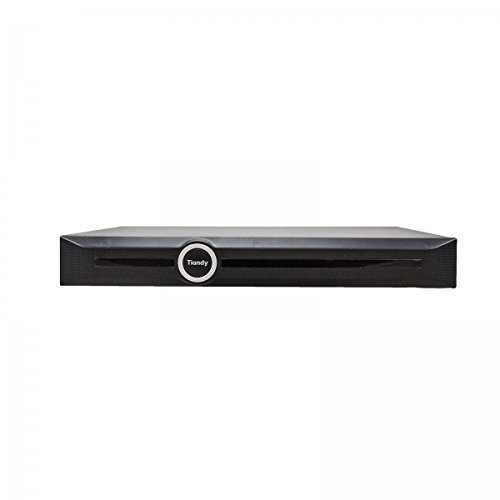
Imej 3.1: Depan view of the Tiandy TC-NR4008M7-S2 NVR. The front panel typically includes status indicators and the brand logo.
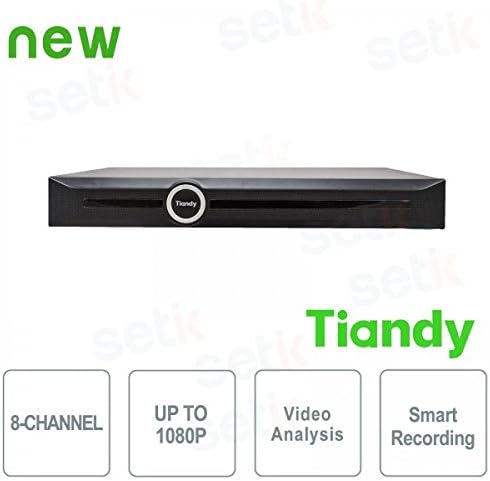
Imej 3.2: Depan view of the Tiandy NVR with graphical indicators for 8-Channel support, Up to 1080P resolution, Video Analysis, and Smart Recording.
3.2 Panel Belakang
The rear panel provides all necessary connection ports for the NVR:
- Input Kuasa: Untuk menyambungkan penyesuai kuasa.
- Pelabuhan Ethernet: RJ45 port for network connection to IP cameras and the internet.
- Output HDMI: For connecting to an HDMI monitor or TV.
- Output VGA: For connecting to a VGA monitor.
- Port USB: Two USB ports for mouse connection and external storage.
- Audio Masuk/Keluar: Untuk menyambungkan peranti audio luaran.
- Alarm In/Out: Untuk menyambungkan peranti penggera luaran.
Imej 3.3: Detailed rear panel of the NVR, illustrating the layout of the power input, Ethernet port, HDMI, VGA, USB ports, audio, and alarm connections.
4. Persediaan
4.1 Pemasangan Cakera Keras
The NVR supports two 3.5-inch SATA hard drives (not included). It is recommended to use surveillance-grade hard drives for optimal performance and reliability. To install:
- Power off the NVR and disconnect all cables.
- Remove the NVR's cover by unscrewing the retaining screws.
- Mount the hard drives into the designated bays using the provided screws.
- Connect the SATA data and power cables from the NVR motherboard to the hard drives.
- Gantikan penutup dan kencangkannya dengan skru.
Nota: SSDs may not have dedicated mounting slots and might require alternative securing methods if used.
4.2 Sambungan Awal
- Sambungkan monitor ke port output HDMI atau VGA NVR.
- Connect the included USB mouse to one of the NVR's USB ports.
- Sambungkan NVR ke rangkaian anda menggunakan kabel Ethernet.
- Connect the power adapter to the NVR and then to a power outlet.
- Hidupkan NVR.
4.3 First-Time Configuration
Upon first boot, the NVR will guide you through an initial setup wizard. This typically includes:
- Setting up administrator password.
- Formatting the installed hard drives.
- Network settings configuration (DHCP or static IP).
- Tetapan masa dan tarikh.
- Adding IP cameras (the NVR should be able to recognize and connect to ONVIF-compatible cameras).
5. Beroperasi
5.1 Langsung View
After successful setup, you can access the live view of your connected cameras through the NVR's local interface. The live view is designed to be fluid and responsive.
5.2 Konfigurasi Rakaman
NVR menyokong pelbagai mod rakaman:
- Rakaman Berterusan: Rekod 24/7.
- Rakaman Pengesanan Gerak: Records only when motion is detected by the cameras.
- Rakaman Berjadual: Records during specific time periods.
- Rakaman Penggera: Records when an alarm event is triggered.
Access the recording settings through the NVR's menu to configure your preferred recording schedule and modes for each channel.
5.3 Video Analysis and Smart Recording
The NVR includes advanced video analysis features. These can be configured to trigger recordings or alarms based on specific events, such as line crossing, intrusion detection, or object removal. Smart Recording optimizes storage by adjusting recording parameters based on event types.
5.4 Akses Jauh (Apl Mudah Alih)
The NVR supports remote viewing and management via a mobile application, such as 'Easy Live Plus'. To use the app:
- Download the 'Easy Live Plus' app from your smartphone's app store.
- Daftar akaun dan log masuk.
- Add your NVR to the app using its serial number or QR code.
Nota: While the app provides remote access, some users have reported limitations in its functionality and configuration options compared to the local NVR interface. It is recommended to configure detailed settings directly on the NVR.
6. Penyelenggaraan
6.1 Pengurusan Cakera Keras
Regularly check the status of your hard drives through the NVR's storage management menu. You may need to:
- Format Hard Drives: If you install new drives or encounter recording issues, formatting can resolve problems. This will erase all data on the drive.
- Replace Hard Drives: If a hard drive fails or reaches its end of life, replace it following the installation steps in Section 4.1.
6.2 Kemas Kini Perisian
Periodically check the Tiandy official website for firmware updates. Firmware updates can improve performance, add new features, and fix bugs. Follow the instructions provided with the firmware update package carefully.
6.3 Pembersihan
Keep the NVR clean and free from dust. Use a soft, dry cloth to wipe the exterior. Ensure ventilation openings are not obstructed by dust buildup. Do not use liquid cleaners directly on the unit.
7. Penyelesaian masalah
This section addresses common issues you might encounter with your NVR.
7.1 Tiada Output Video
- Check if the monitor is properly connected to the HDMI or VGA port.
- Pastikan monitor dihidupkan dan ditetapkan kepada sumber input yang betul.
- Verify that the NVR is powered on and its status indicators are normal.
7.2 Isu Rakaman
- No Recordings: Check if hard drives are installed, formatted, and healthy. Verify recording schedules and motion detection settings.
- Tetapan Tidak Menyimpan: If settings revert to default, especially after using the mobile app, try configuring settings directly on the NVR's local interface. Ensure the NVR's firmware is up to date.
- Kualiti Rakaman yang Buruk: Check camera resolution settings and NVR recording parameters. Ensure sufficient bandwidth for IP cameras.
7.3 Network and Remote Access Problems
- Ensure the Ethernet cable is securely connected to the NVR and your router/switch.
- Verify network settings (IP address, gateway, DNS) on the NVR.
- For remote access, ensure your NVR has internet access and port forwarding (if required by your network setup) is correctly configured on your router.
- If using the mobile app, ensure the app is updated to the latest version.
7.4 NVR Not Powering On
- Check the power cable connection to the NVR and the power outlet.
- Pastikan penyesuai kuasa berfungsi dengan betul.
- Cuba salur keluar kuasa yang berbeza.
8. Spesifikasi
| Ciri | Spesifikasi |
|---|---|
| Nombor Model | TC-NR4008M7-S2 |
| Jenama | Tiandy |
| Saluran | 8 Saluran IP |
| Resolusi Maks | 1080P (HD Penuh) |
| Sokongan HDD | 2 x 3.5" SATA HDD, up to 4TB each (8TB total) |
| Output Video | 1 x HDMI, 1 x VGA |
| Port USB | 2 x USB |
| Antara Muka Rangkaian | 1 x RJ45 Ethernet |
| Audio | Audio In/Out support |
| Penggera | Alarm In/Out support |
| Ciri-ciri | Video Analysis, Smart Recording, ONVIF Compatible |
| Berat Barang | 2.8 kg |
| Peranti Serasi | Smartphone (for remote access) |
9. Waranti dan Sokongan
For warranty information, please refer to the warranty card included with your product or contact your point of purchase. For technical support, please contact Tiandy customer service or your authorized dealer. Ensure you have your product model number (TC-NR4008M7-S2) and purchase details available when seeking support.