
1. Pengenalan
This manual provides detailed instructions for setting up, operating, and maintaining your Epson L485 Wi-Fi Inktank Printer. Please read this manual thoroughly to ensure proper use and to maximize the performance and longevity of your device.
Produk Selesaiview
The Epson L485 is a versatile all-in-one printer offering print, scan, and copy functionalities with the added convenience of Wi-Fi Direct. It features an innovative ink tank system designed for high-volume printing with impressive page yields and a high print resolution for quality output.

Rajah 1: Depan view of the Epson L485 Wi-Fi Inktank Printer.
Apa yang ada dalam Kotak
- Epson L485 Printer Unit
- CD Perisian
- Kabel Kuasa
- Kad Waranti
- Set of Original Epson Ink Bottles (Black, Cyan, Magenta, Yellow)
Video 1: Tamatview of the Epson L485 Wi-Fi Inktank Printer's features and design.
2. Panduan Persediaan
Follow these steps to set up your Epson L485 printer for the first time.
Video 2: Step-by-step guide on how to set up your Epson InkTank Printer.
2.1 Initial Printer Preparation
- Buka Pembungkusan Pencetak: Keluarkan pencetak daripada pembungkusannya dengan berhati-hati. Tanggalkan semua pita dan bahan pelindung.
- Kedudukan Injap Semak: Locate the ink tank valve on the side of the printer. Ensure it is in the upright (printing) position.
- Open Ink Tank Unit: Gently unhook the ink tank unit from the side of the printer and open its lid to access the ink tanks.
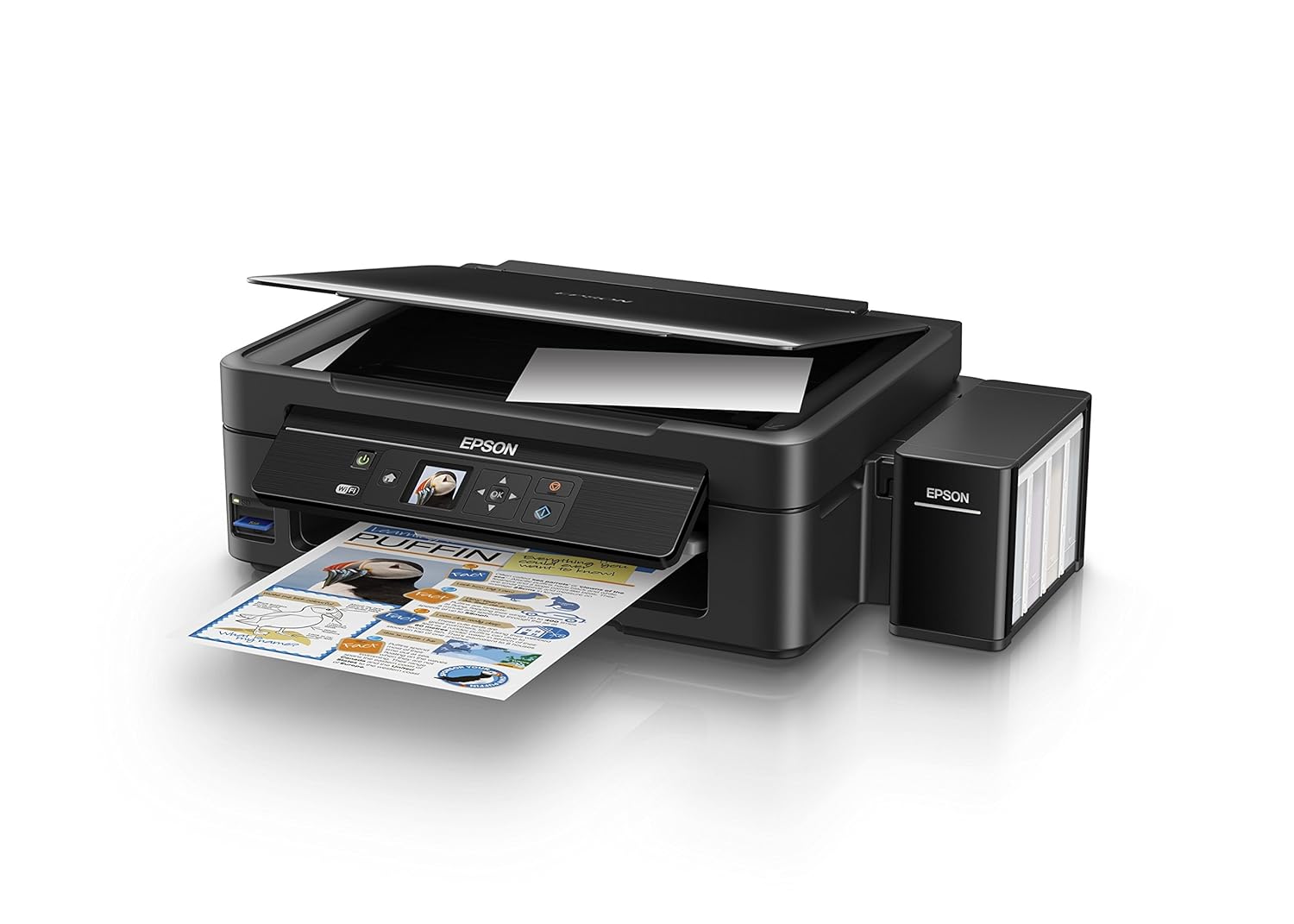
Figure 2: The ink tank unit unhooked and open, showing the ink reservoirs.
2.2 Mengisi Tangki Dakwat
- Prepare Ink Bottles: Snap off the tip of each ink bottle and remove the cap.
- Fill Ink Tanks: Match the color of the ink bottle with the corresponding ink tank. Carefully pour the entire contents of each ink bottle into its respective tank. Do not overfill.
- Penutup Selamat: Once all tanks are filled, replace the caps securely on the ink tanks.
- Close Ink Tank Unit: Close the lid of the ink tank unit and re-hook it to the printer.

Figure 3: Demonstrating the process of filling an ink tank with a yellow ink bottle.

Figure 4: The four color ink bottles used for the Epson L485 printer.
2.3 Power On and Ink Charging
- Sambungkan Kuasa: Plug the power cable into the printer and then into a wall outlet.
- Turn On Printer: Tekan butang kuasa untuk menghidupkan pencetak.
- Initiate Ink Charge: Press and hold the 'Ink Charge' button (usually indicated by a droplet icon) for 3 seconds until the lights start blinking. The initial ink charging process takes approximately 20 minutes. Do not turn off or unplug the printer during this process.
- penyiapan: The lights will stop blinking when ink charging is complete.
2.4 Pemasangan Pemandu
- Insert Software CD: Insert the provided Software CD into your computer's CD/DVD drive. If your computer does not have a CD drive, download the latest drivers from the official Epson support webtapak.
- Ikuti Arahan Pada Skrin: Follow the prompts on your computer screen to install the printer drivers and utilities. Agree to the license agreement and select 'Start & Connection' for setup.
- Connect USB Cable (if prompted): If setting up via USB, connect the USB cable between the printer and your computer when prompted by the installation software.
2.5 Connectivity Setup
The Epson L485 supports both USB and Wi-Fi connectivity.
Sambungan USB
Connect the USB cable from the printer to an available USB port on your computer. The printer should be recognized automatically after driver installation.
Persediaan Wi-Fi
The printer features an LCD screen for easy Wi-Fi setup without needing a PC.
- Access Wi-Fi Setup: On the printer's control panel, navigate to the 'Wi-Fi Setup' option using the arrow keys and press 'OK'.
- Pilih Rangkaian: Choose your desired wireless network from the list and enter the password if required.
- Sahkan Sambungan: Once connected, the Wi-Fi indicator light will be solid, and the LCD screen will confirm the setup is complete.

Figure 5: Demonstrating wireless printing from a smartphone to the Epson L485 printer.
3. Mengendalikan Pencetak
3.1 Mencetak
The Epson L485 delivers high-quality prints with a resolution of 5760 dpi. It offers print speeds of up to 33 ppm for black and 15 ppm for color documents.
- Muatkan Kertas: Load paper into the rear paper feeder. Adjust the paper guides to fit the paper size.
- Select Print Job: From your computer or mobile device, select the document or image you wish to print.
- Laraskan Tetapan: Choose your print settings (e.g., paper size, print quality, color/black & white) in the print dialog box.
- Cetak: Click 'Print' to send the job to the printer.

Figure 6: The Epson L485 printer in action, producing a vibrant print.
3.2 Mengimbas
The printer features a sheetfed scanner with an optical resolution of 1200 dpi x 2400 dpi for clear and detailed scans.
- Dokumen Tempat: Lift the scanner lid and place your document face-down on the scanner glass, aligning it with the corner mark.
- Mulakan Imbasan: From your computer, open the Epson Scan software or use the scan function on the printer's control panel.
- Laraskan Tetapan: Select scan settings such as resolution, color mode, and destination folder.
- Mulakan Imbasan: Begin the scanning process.

Figure 7: The scanner bed of the Epson L485 printer with the lid open.
3.3 Menyalin
Make copies directly from the printer's control panel.
- Dokumen Tempat: Place the document you wish to copy on the scanner glass.
- Select Copy Function: On the printer's LCD screen, navigate to the 'Copy' option.
- Laraskan Tetapan: Select the number of copies, color or black & white, and other copy settings.
- Start Copy: Tekan butang 'Mula' untuk mula menyalin.
3.4 Wi-Fi Terus
Wi-Fi Direct allows you to connect your mobile devices directly to the printer without a router, enabling convenient wireless printing.
- Enable Wi-Fi Direct: On the printer's control panel, go to 'Wi-Fi Setup' and select 'Wi-Fi Direct'. Follow the on-screen instructions to enable it and view nama rangkaian dan kata laluan.
- Sambungkan Peranti Mudah Alih: On your mobile device, go to Wi-Fi settings, find the printer's Wi-Fi Direct network, and connect using the provided password.
- Cetak: Use an Epson printing app (e.g., Epson iPrint) or your device's native print function to print directly to the printer.
4. Penyelenggaraan
4.1 Ink Refill
When ink levels are low, refill the tanks using genuine Epson ink bottles. Refer to section 2.2 for detailed ink filling instructions. Always use the correct color ink for each tank.
4.2 Pembersihan
Pembersihan berkala membantu mengekalkan kualiti cetakan dan memanjangkan jangka hayat pencetak anda.
- Pembersihan Luaran: Lap bahagian luar pencetak dengan lembut, damp kain. Elakkan menggunakan pembersih yang kasar.
- Pembersihan Kepala Cetak: If print quality declines (e.g., missing lines, incorrect colors), perform a print head cleaning using the printer's utility software on your computer or through the printer's control panel menu.
- Pemeriksaan muncung: Run a nozzle check pattern to diagnose print quality issues before performing a head cleaning.
5. Penyelesaian masalah
This section addresses common issues you might encounter with your Epson L485 printer.
5.1 Pencetak Tidak Bertindak Balas
- Ensure the printer is powered on and connected securely to the power outlet.
- Check the USB cable connection to both the printer and computer, or verify the Wi-Fi connection status.
- Restart both the printer and your computer/mobile device.
5.2 Kualiti Cetakan Lemah
- Perform a nozzle check to identify clogged nozzles. If necessary, run a print head cleaning cycle.
- Periksa paras dakwat dan isi semula sebarang tangki yang hampir habis.
- Ensure you are using genuine Epson ink and appropriate paper types for your print job.
5.3 Kesesakan Kertas
- Turn off the printer and carefully remove any jammed paper from the paper tray, output tray, or inside the printer.
- Pastikan kertas dimuatkan dengan betul dan tidak berkedut atauurled.
6. Spesifikasi
| Jenama | Epson |
| Nama Model | L485 |
| Teknologi Ketersambungan | Wi-Fi |
| Teknologi Percetakan | Inkjet |
| Ciri Khas | Slot Kad Memori |
| warna | Hitam |
| Output Pencetak | warna |
| Kelajuan Cetakan Maksimum (Warna) | 15 ppm |
| Kelajuan Cetakan Maks (Monokrom) | 33 ppm |
| Berat Barang | 6001 Gram |
| Jenis Pencetak | Inkjet |
| Jenis Pengimbas | Lembaran |
| Maximum Copy Speed (Black and White) | 33 ppm |
| Jenis Paparan | LCD |
| Peranti Serasi | Telefon pintar |
| Warna Dakwat | Black, Cyan, Magenta, Yellow |
| Resolusi | 5760 x 5760 DPI |
| Fungsi Pencetak Tambahan | All In One (Print, Scan, Copy) |
| Saiz Media Maksimum | A4 |
| Saiz Kertas | A4 |
| Pencetakan dua muka | Tidak |
7. Waranti dan Sokongan
Your Epson L485 Wi-Fi Inktank Printer comes with a free installation service and an onsite warranty.
7.1 Free Installation and Onsite Warranty
To avail free installation for your printer, please contact Epson support after receiving your product. The onsite warranty covers manufacturing defects and ensures professional assistance at your location.
7.2 Hubungi Sokongan
For installation, support, or any technical assistance, please contact Epson customer service:
- telefon: 1860 3000 1600 (Timings: 9 am - 6 pm)