1. Pengenalan
This manual provides detailed instructions for the installation, operation, and maintenance of your Biostar TB85 motherboard. The Biostar TB85 is an ATX form factor motherboard designed for Intel Socket 1150 processors, supporting DDR3 memory. It features an Intel B85 chipset, offering a reliable foundation for personal computer systems.

Rajah 1: Berakhirview of the Biostar TB85 Motherboard. This image displays the full layout of the motherboard, including the CPU socket, RAM slots, PCIe slots, and various connectors.
2. Persediaan dan Pemasangan
Sebelum memulakan pemasangan, pastikan sistem anda dimatikan dan diputuskan sambungan daripada sumber kuasa. Kendalikan papan induk di tepinya untuk mengelakkan nyahcas statik.
2.1 Pemasangan CPU
The Biostar TB85 motherboard uses an LGA 1150 socket.
- Cari soket CPU pada papan induk.
- Gently push down the load lever and pull it sideways to open the socket retention frame.
- Sejajarkan tanda segi tiga pada CPU dengan tanda yang sepadan pada soket. Letakkan CPU ke dalam soket dengan berhati-hati tanpa memaksanya.
- Tutup bingkai penahan dan selamatkannya dengan tuil beban.
- Sapukan tampal haba pada CPU dan pasangkan penyejuk CPU mengikut arahan pengeluarnya.
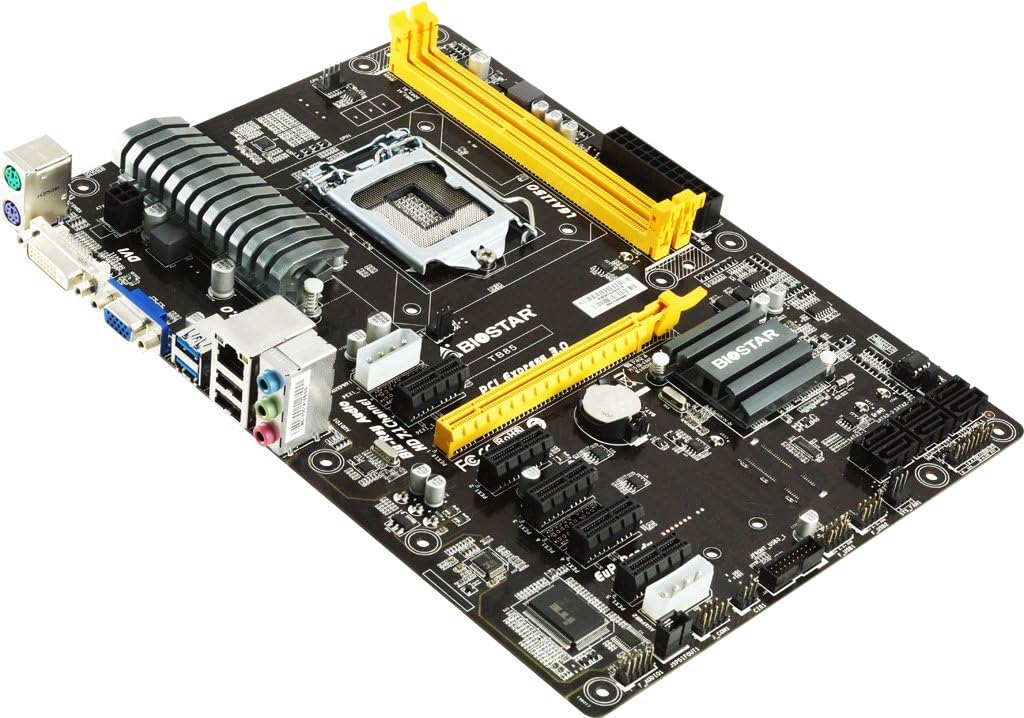
Rajah 2: Terperinci view of the LGA 1150 CPU socket and the two yellow DDR3 RAM slots on the Biostar TB85 motherboard.
2.2 Pemasangan RAM
The motherboard supports DDR3 RAM modules. It has two DIMM slots, supporting up to 16 GB total memory.
- Buka klip di kedua-dua hujung slot DIMM.
- Selaraskan takuk pada modul memori DDR3 dengan kunci dalam slot DIMM.
- Masukkan modul memori dengan kuat ke dalam slot sehingga klip terpasang pada tempatnya.
2.3 Storage Device Installation (SATA)
The Biostar TB85 includes SATA 3 ports for connecting storage devices such as HDDs and SSDs. While the specifications list 1 total SATA port, the motherboard visually features multiple SATA 3 ports for connectivity.
- Sambungkan satu hujung kabel data SATA ke port SATA pada papan induk.
- Connect the other end of the SATA data cable to your storage device.
- Sambungkan kabel kuasa SATA daripada unit bekalan kuasa (PSU) anda ke peranti storan.
2.4 Pemasangan Kad Pengembangan (PCIe)
The motherboard features multiple PCIe slots for expansion cards like graphics cards, network cards, or sound cards. It has 4 total PCIe ports.
- Select an appropriate PCIe slot for your expansion card.
- Remove the corresponding metal bracket cover from your PC case.
- Align the expansion card with the slot and press it down firmly until it is fully seated.
- Pasangkan kad dengan skru pada bekas PC.
2.5 Sambungan Kuasa
Connect the main 24-pin ATX power connector and the 8-pin (or 4-pin) CPU power connector from your PSU to the corresponding sockets on the motherboard. Ensure all power cables are securely connected.
2.6 Sambungan I/O Panel Hadapan dan Belakang
Connect your PC case's front panel connectors (power button, reset button, USB ports, audio jacks, indicator LEDs) to the appropriate headers on the motherboard. Refer to the motherboard's silkscreen labels for correct pin assignments.
The rear I/O panel includes ports for peripherals:
- PS/2 ports for keyboard/mouse
- VGA and DVI display outputs
- USB 3.0 and USB 2.0 ports (The specifications list 2 total USB ports, but the rear I/O panel typically offers more)
- Pelabuhan LAN
- Audio jacks (HD 7.1 Channel Blu-Ray Audio)
3. Arahan Operasi
3.1 But Permulaan dan Persediaan BIOS
After assembling your system, connect a monitor, keyboard, and mouse. Power on the system. During startup, press the designated key (usually DEL or F2) untuk memasuki utiliti persediaan BIOS/UEFI.
- Semak Maklumat Sistem: Verify that the CPU, RAM, and storage devices are correctly detected.
- Set Boot Order: Configure the boot order to prioritize your operating system installation media (USB drive or optical drive).
- Simpan dan keluar: Save your changes and exit the BIOS. The system will restart.
3.2 Pemasangan Sistem Pengoperasian dan Pemacu
Install your preferred operating system (e.g., Windows, Linux) by following its installation prompts. After the OS is installed, install the necessary drivers for the motherboard components.
- Pemacu Chipset: Pasang pemacu cipset Intel B85.
- Pemacu Grafik: Install drivers for integrated graphics (if used) or your dedicated graphics card.
- Pemacu Audio: Install HD Audio drivers for 7.1 channel support.
- Pemacu LAN: Pasang pemacu rangkaian untuk sambungan internet.
- USB 3.0 Drivers: Ensure USB 3.0 functionality.
Drivers can typically be found on the Biostar official website or on the driver CD included with the motherboard (if applicable).
4. Penyelenggaraan
Penyelenggaraan tetap membantu memastikan jangka hayat dan operasi yang stabil bagi motherboard dan sistem anda.
- Penyingkiran habuk: Periodically clean dust from the motherboard, CPU cooler, and case fans using compressed air. Ensure the system is powered off and unplugged.
- Kemas Kini BIOS: Check the Biostar website for BIOS updates. BIOS updates can improve compatibility, stability, and performance. Follow Biostar's specific instructions for BIOS flashing carefully to avoid system damage.
- Kemas Kini Pemandu: Pastikan pemacu anda dikemas kini untuk memastikan prestasi optimum dan keserasian dengan perisian dan perkakasan baharu.
- Pemeriksaan Komponen: Ensure all cables are securely connected and no components are loose.
5. Penyelesaian masalah
If you encounter issues, refer to the following common troubleshooting steps.
- Tiada Kuasa:
- Ensure the PSU is switched on and all power cables (24-pin ATX, 8-pin CPU) are firmly connected to the motherboard and PSU.
- Check the front panel power switch connection to the motherboard.
- Tiada Paparan:
- Verify that the monitor is connected to the correct display output (VGA/DVI on motherboard or dedicated graphics card).
- Reseat the RAM modules. Try booting with only one RAM module installed.
- Letakkan semula kad grafik (jika berkenaan).
- Ketidakstabilan/Ranap Sistem:
- Semak suhu CPU dan GPU. Pastikan penyejukan yang mencukupi.
- Jalankan alat diagnostik memori untuk memeriksa RAM yang rosak.
- Pastikan semua pemacu dipasang dengan betul dan dikemas kini.
- Periferi Tidak Dikesan:
- Try connecting the peripheral to a different port.
- Pastikan pemacu periferal dipasang.
- Check BIOS settings for port enablement.
For more advanced troubleshooting or persistent issues, contact Biostar technical support.
6. Spesifikasi
Below are the key technical specifications for the Biostar TB85 motherboard.
| Ciri | Spesifikasi |
|---|---|
| Jenama | Biostar |
| Nama Model | TB85 |
| Soket CPU | LGA 1150 |
| Pemproses yang Serasi | Intel Core i3-4xxx, i5-4xxx, i7-4xxx, i3-5xxx, i5-5xxx, i7-5xxx |
| Jenis Chipset | Intel B85 |
| Teknologi Memori RAM | DDR3 |
| Kapasiti Storan Memori (Maks) | 16 GB |
| Jenis Penyambung Kuasa Utama | 24-Pin |
| Antara Muka Kad Grafik | Integrated (VGA, DVI outputs) |
| Total SATA Ports | 1 (SATA 3 supported) |
| Jumlah Port USB | 2 (as per spec, typically more via headers) |
| Total PCIe Ports | 4 |
| Audio | HD 7.1 Channel Blu-Ray Audio |
| Faktor Bentuk | ATX |
| Berat Barang | 2.05 paun |
7. Maklumat Waranti
Biostar motherboards typically come with a manufacturer's limited warranty. The duration and terms of the warranty may vary by region and retailer.
- Tempoh Waranti: Refer to your purchase documentation or the official Biostar website for specific warranty periods applicable to your region.
- Bukti Pembelian: Always retain your proof of purchase (invoice or receipt) as it is required for warranty claims.
- Pengecualian Waranti: The warranty generally does not cover damage caused by improper installation, misuse, unauthorized modifications, accidents, or natural disasters.
For detailed warranty terms and conditions, please visit the official Biostar support webtapak.
8. Sokongan
For technical assistance, driver downloads, BIOS updates, or further information regarding your Biostar TB85 motherboard, please utilize the following resources:
- Official Biostar Webtapak: www.biostar.com.tw (Check for support section, drivers, and FAQs)
- Halaman Sokongan Produk: Look for a dedicated support page for the TB85 model on the Biostar webtapak.
- Hubungi Sokongan: Information for contacting Biostar technical support via email or phone can usually be found on their webtapak.
When contacting support, have your motherboard model (TB85) and a detailed description of your issue ready.