
pengenalan
This manual provides instructions for the proper setup, operation, and maintenance of your Targus W600 Wireless Optical Mouse. Please read this manual thoroughly before using the device to ensure optimal performance and longevity.
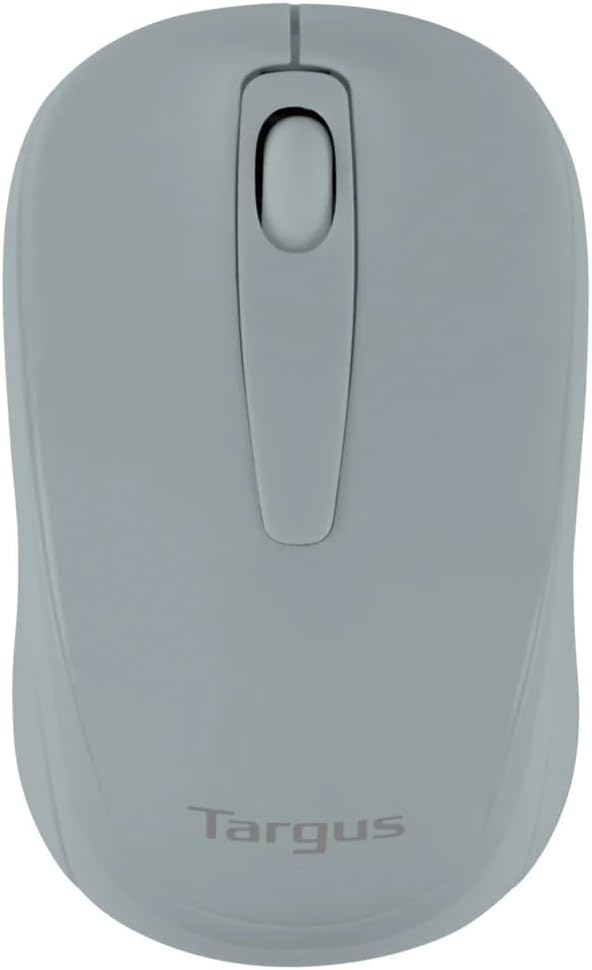
Figure 1: Targus W600 Wireless Optical Mouse (Quarry Gray)
Kandungan Pakej
Pastikan semua item ada dalam pakej:
- Targus W600 Wireless Optical Mouse
- Penerima USB
- Manual Pengguna (dokumen ini)
Note: 1 AA battery is required and sold separately.
Ciri-ciri Produk
- 2.4 GHz Wireless Technology for reliable connection
- 1600 DPI Optical Sensor for precise tracking
- Reka bentuk ergonomik untuk penggunaan yang selesa
- Sesuai dengan sistem operasi Windows dan Mac
- Integrated USB receiver storage compartment
Persediaan
1. Memasang Bateri
- Turn the mouse over to locate the battery compartment cover.
- Gently slide the cover off.
- Masukkan satu (1) bateri AA, pastikan kekutuban (+/-) yang betul.
- Gantikan penutup petak bateri.
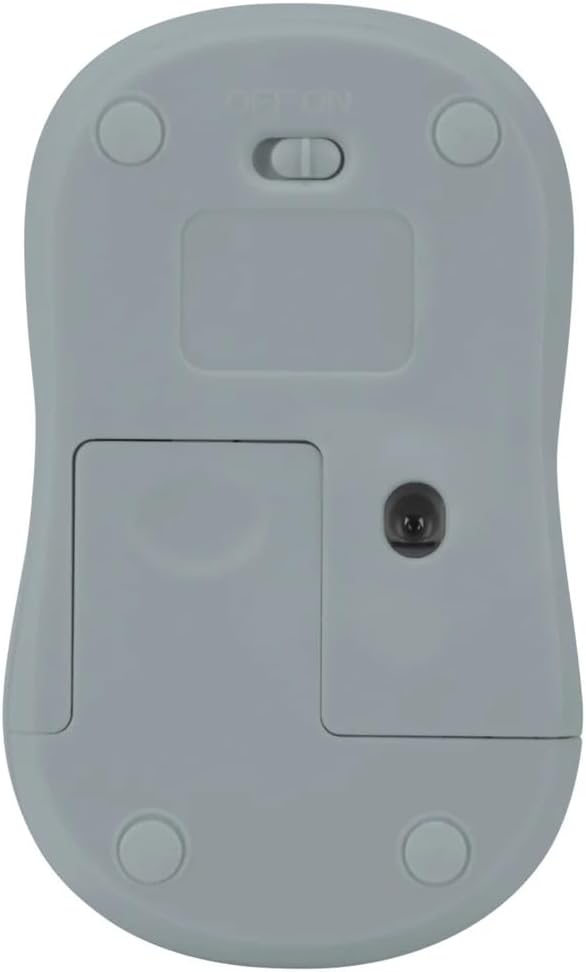
Rajah 2: Bawah view of the mouse with battery compartment and power switch.
2. Menyambungkan Penerima USB
- Locate the USB receiver, typically stored inside the mouse's battery compartment or a dedicated slot.
- Palamkan penerima USB ke dalam port USB yang tersedia pada komputer anda.
- Komputer anda harus secara automatik mengesan dan memasang pemacu yang diperlukan. Ini mungkin mengambil masa beberapa saat.
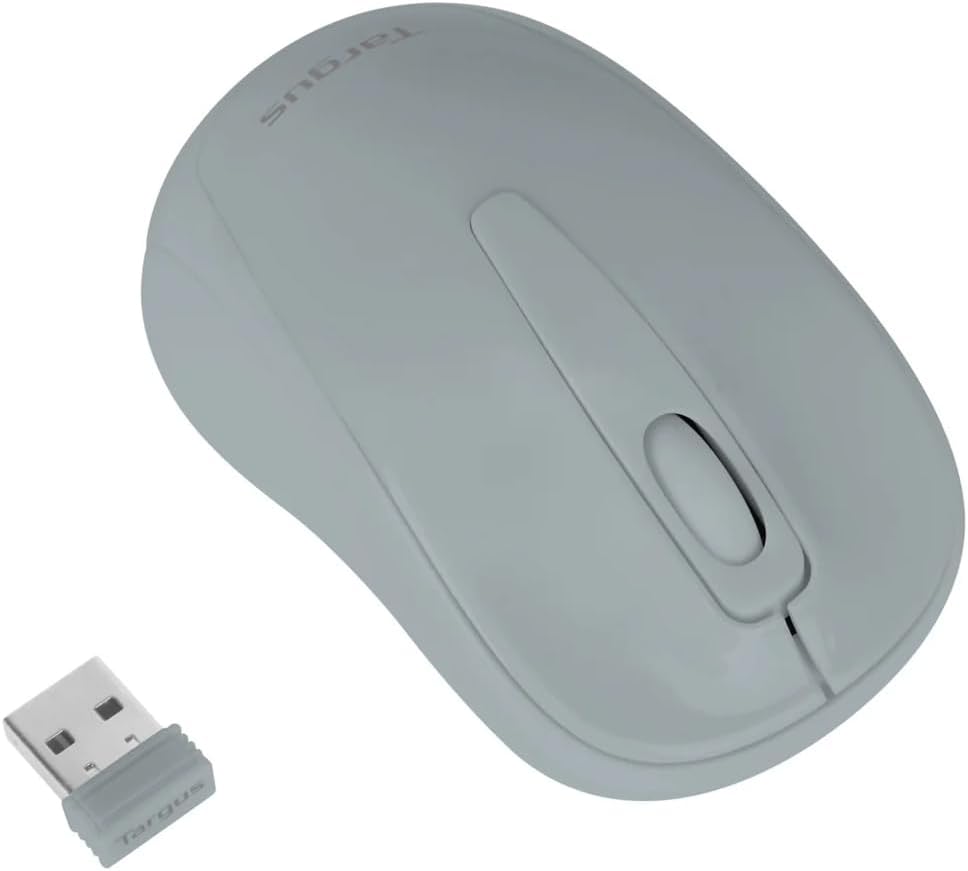
Figure 3: Targus W600 mouse and its USB receiver.

Figure 4: USB receiver plugged into a laptop, with the mouse nearby.
3. Menghidupkan Tetikus
On the bottom of the mouse, slide the ON/OFF switch to the "ON" position. The mouse is now ready for use.
Mengendalikan Tetikus
The Targus W600 Wireless Optical Mouse functions like a standard 3-button mouse. It features a left button, a right button, and a scroll wheel that also acts as a middle button.
- Klik Kiri: Primary action, selection, opening items.
- Klik kanan: Opens contextual menus.
- Roda Tatal: Skrol dokumen dan web pages vertically. Pressing the scroll wheel acts as a middle click, often used for opening links in new tabs or specific application functions.
The 1600 DPI optical sensor provides smooth and accurate cursor control on most surfaces. For best performance, use on a mouse pad or a non-reflective, uniform surface.
Penyelenggaraan
Pembersihan
Untuk membersihkan tetikus anda, lap permukaan dengan lembut, damp cloth. Avoid using harsh chemicals or abrasive cleaners, as these can damage the finish or internal components. Ensure no liquid enters the mouse.
Penggantian Bateri
When the mouse performance degrades or stops responding, it may be time to replace the battery. Follow the steps outlined in the "Installing the Battery" section to replace the AA battery. Dispose of used batteries responsibly according to local regulations.
Menyelesaikan masalah
| Masalah | Penyelesaian |
|---|---|
| Tetikus tidak bertindak balas |
|
| Pergerakan kursor tidak menentu |
|
| Julat wayarles pendek |
|
Spesifikasi
| Nombor Model | AMW60006AP-55 |
| Ketersambungan | Tanpa Wayar 2.4 GHz (Penerima USB) |
| Teknologi Sensor | Optik |
| DPI | 1600 DPI |
| Bilangan Butang | 3 (Left, Right, Scroll Wheel/Middle Click) |
| Sumber Kuasa | 1 x Bateri AA (tidak termasuk) |
| Sistem Operasi yang Serasi | Windows, Mac |
Catatan: Spesifikasi boleh berubah tanpa notis.
Waranti dan Sokongan
For warranty information and technical support, please refer to the official Targus webtapak atau hubungi perkhidmatan pelanggan mereka. Simpan resit pembelian anda sebagai bukti pembelian untuk tuntutan waranti.
Targus Official Webtapak: www.targus.com