
1. Pengenalan
The CHERRY KC 1000 is a reliable wired keyboard designed for professional office use and everyday computing. It features a full-size Italian QWERTY layout, a flat design, and quiet keystrokes for comfortable and efficient typing. This manual provides essential information for setting up, operating, maintaining, and troubleshooting your keyboard.
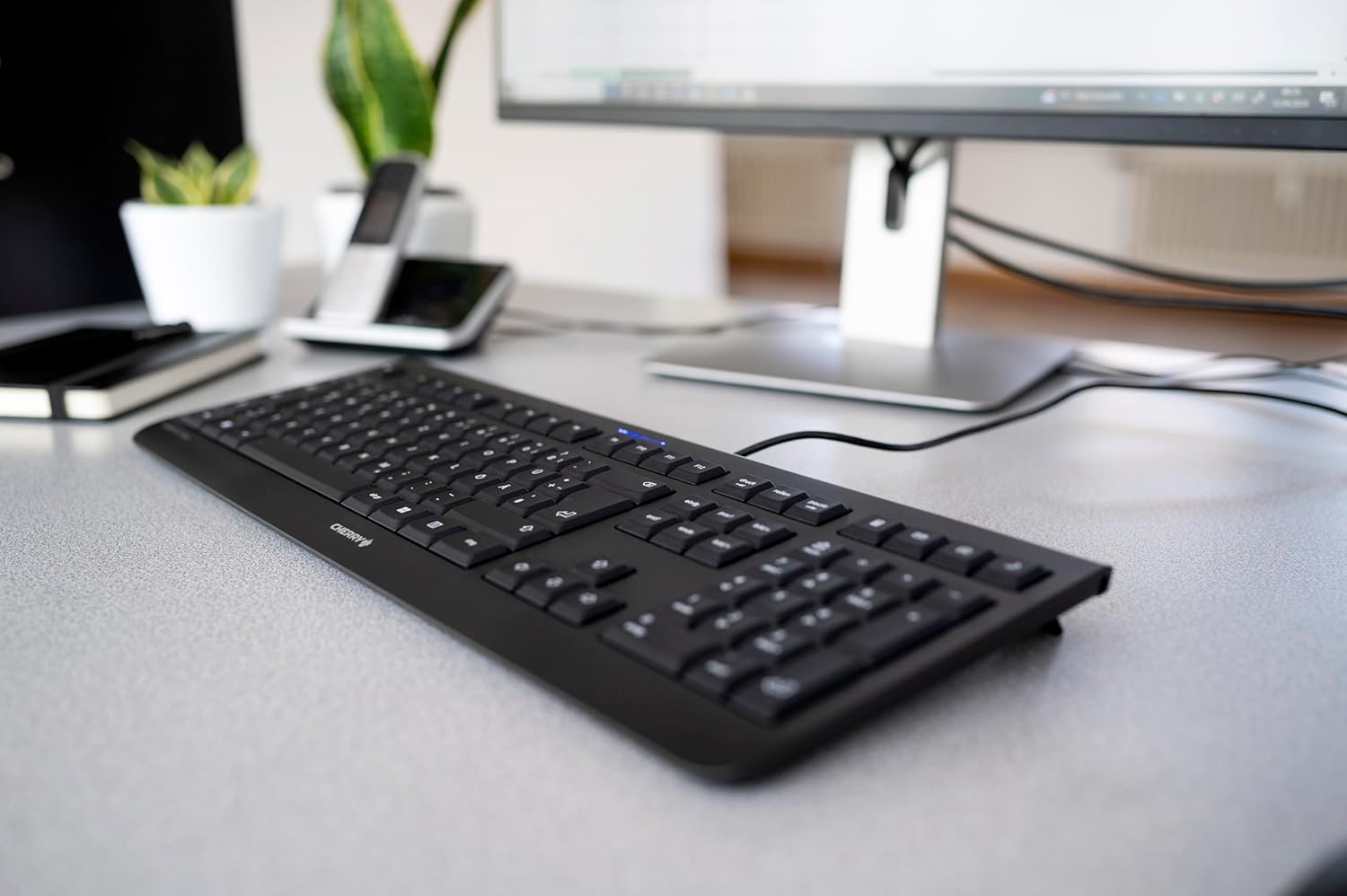
Image 1.1: The CHERRY KC 1000 keyboard in a typical office setup.
2. Persediaan
The CHERRY KC 1000 keyboard is designed for simple Plug & Play installation. No additional drivers are required for most operating systems.
2.1 Menyambung Papan Kekunci
- Locate an available USB-A port on your computer (desktop PC, laptop, or compatible device).
- Insert the USB connector of the CHERRY KC 1000 keyboard into the USB-A port.
- Sistem pengendalian anda akan mengesan dan memasang pemacu yang diperlukan secara automatik. Proses ini biasanya mengambil masa beberapa saat.
- Papan kekunci kini sedia untuk digunakan.
The keyboard features a 180 cm (approximately 5.9 feet) long cable, providing ample flexibility for desk arrangements.

Image 2.1: The USB cable connection of the CHERRY KC 1000 keyboard.
3. Mengendalikan Papan Kekunci
The CHERRY KC 1000 offers a standard Italian QWERTY layout with additional function keys for enhanced productivity.
3.1 Key Layout and Functions
The keyboard includes a full-size layout with a dedicated numeric keypad and cursor keys. The Italian QWERTY layout supports specific characters and symbols commonly used in the Italian language.

Imej 3.1: Selesaiview of the CHERRY KC 1000 Italian QWERTY key layout.
3.2 Kekunci Fungsi Khas
The keyboard features 4 additional keys located above the numeric keypad for quick access to common functions:
- Kalkulator: Opens the default calculator application.
- e-mel: Melancarkan klien e-mel lalai anda.
- pelayar: Membuka lalai anda web pelayar.
- Mod tidur: Puts your computer into sleep mode.
3.3 Status LED
Three blue status LEDs are located above the function keys to indicate the status of:
- CAPS LOCK: Bercahaya apabila Caps Lock aktif.
- NUMBER: Menyala apabila Num Lock aktif.
- SCROLL: Menyala apabila Kunci Skrol aktif.

Image 3.2: User interacting with the CHERRY KC 1000 keyboard.
4. Penyelenggaraan
Proper care and maintenance will ensure the longevity and optimal performance of your CHERRY KC 1000 keyboard.
4.1 Membersihkan Papan Kekunci
- Putuskan sambungan papan kekunci daripada komputer anda sebelum membersihkan.
- Gunakan kain lembut dan tidak berbulu sedikit dampened with water or a mild cleaning solution (e.g., isopropyl alcohol) to wipe the keycaps and keyboard surface.
- Avoid using abrasive cleaners, solvents, or harsh chemicals, as these can damage the keyboard's finish or key legends.
- Untuk habuk dan serpihan di antara kunci, gunakan udara termampat atau berus kecil.
- Pastikan papan kekunci benar-benar kering sebelum menyambungkannya semula ke komputer anda.
4.2 Penjagaan Am
- Elakkan daripada menumpahkan cecair pada papan kekunci.
- Jangan dedahkan papan kekunci kepada suhu yang melampau atau cahaya matahari langsung untuk tempoh yang lama.
- Jangan cuba membuka papan kekunci, kerana ini boleh membatalkan jaminan.
5. Penyelesaian masalah
If you encounter issues with your CHERRY KC 1000 keyboard, refer to the following common troubleshooting steps.
5.1 Papan Kekunci Tidak Bertindak Balas
- Semak Sambungan USB: Ensure the USB cable is securely plugged into both the keyboard and the computer's USB port. Try a different USB port.
- Mulakan semula Komputer: Sometimes a simple computer restart can resolve connectivity issues.
- Uji pada Komputer Lain: If possible, connect the keyboard to another computer to determine if the issue is with the keyboard or the original computer.
- Pemasangan Semula Pemandu: Although Plug & Play, sometimes reinstalling drivers can help. Disconnect the keyboard, restart the computer, and then reconnect the keyboard.
5.2 Keys Not Functioning Correctly
- Kekunci Bersih: Dust or debris under the keycaps can cause keys to stick or not register. Refer to the cleaning instructions in Section 4.1.
- Konflik Perisian: Ensure no other software or keyboard utilities are interfering with the keyboard's operation.
5.3 Status LEDs Not Working
- Verify that the corresponding lock function (Caps Lock, Num Lock, Scroll Lock) is activated.
- If the keyboard is otherwise functional, a minor software glitch might be preventing the LED from lighting up. A computer restart may resolve this.
6. Spesifikasi
Below are the technical specifications for the CHERRY KC 1000 Wired Keyboard.
| Ciri | Perincian |
|---|---|
| Nama Model | CHERRY KC 1000 |
| Nombor Model | JK-0800IT-2 |
| Ketersambungan | USB-A berwayar |
| Susun atur papan kekunci | Italian QWERTY |
| Bilangan Kunci | 109 |
| Teknologi Utama | Membrane or Rubber Dome |
| Ciri Khas | Whisper-quiet keystroke, 4 additional function keys (Calculator, Email, Browser, Sleep Mode), 3 blue status LEDs |
| Panjang Kabel | 1.8 meter (5.9 kaki) |
| bahan | plastik |
| warna | Hitam |
| Berat badan | 530 Gram |
| Peranti Serasi | Komputer riba, PC |
| Pensijilan | c-tick, cULus, CE, FCC, BSMI, TÜV/GS, Blue Angel eco-label |
7. Waranti dan Sokongan
CHERRY products are manufactured to high-quality standards. For information regarding warranty coverage, please refer to the warranty card included with your product or visit the official CHERRY website. For technical support or further assistance, please contact CHERRY customer service through their official channels.
The product package includes: 1 CHERRY KC 1000 keyboard and a printed instruction manual.