
SecuGen HU20-A
SecuGen HU20-A Hamster Pro 20 USB Fingerprint Reader User Manual
Model: HU20-A
pengenalan
This manual provides detailed instructions for the setup, operation, and maintenance of your SecuGen HU20-A Hamster Pro 20 USB Fingerprint Reader. Please read this manual thoroughly before using the device to ensure proper functionality and longevity.
The SecuGen Hamster Pro 20 is an ultra-compact, high-quality USB fingerprint reader designed for authentication, identification, and verification. It features a rugged optical sensor and is FBI Certified for FIPS 201 (PIV) and Mobile ID FAP 20 requirements.
Ciri-ciri Produk
- Supports most major operating systems.
- Rugged, high-performance, maintenance-free optical sensor resistant to scratches, impact, vibration, and electrostatic shock.
- Automatic finger detection technology (when used with SecuGen applications).
- Self-adjusting scanning technology (when used with SecuGen applications).
- Latent print and false fingerprint rejection.
- Ultra-compact, lightweight, and portable design.
- Integrated finger guide for consistent placement.
- Standard USB 2.0 Hi-speed connection.
- IP54 Certified for dust and water resistance.
Kandungan Pakej
Sahkan bahawa semua item terdapat dalam pakej:
- SecuGen HU20-A Hamster Pro 20 USB Fingerprint Reader
- Kabel USB (bersepadu)
- Panduan Mula Pantas (jika berkenaan)
- Software/Driver CD or download instructions (if applicable)
Persediaan
1. Keperluan Sistem
- Compatible Operating System (most major OS supported)
- Port USB 2.0 tersedia
- Internet connection for driver download (if not provided on CD)
2. Pemasangan Pemandu
- Before connecting the device, visit the official SecuGen website (www.secugen.com) to download the latest drivers and any necessary SDKs or applications for your operating system.
- Run the downloaded installer and follow the on-screen prompts to complete the driver installation.
- Mulakan semula komputer anda jika digesa.
3. Menyambung Peranti
- Cari port USB yang tersedia pada komputer anda.
- Insert the USB connector of the Hamster Pro 20 into the USB port.
- The operating system should detect the device and complete the installation using the previously installed drivers.

Rajah 1: Depan view of the SecuGen Hamster Pro 20 USB Fingerprint Reader, showing the fingerprint platen and the SecuGen logo.
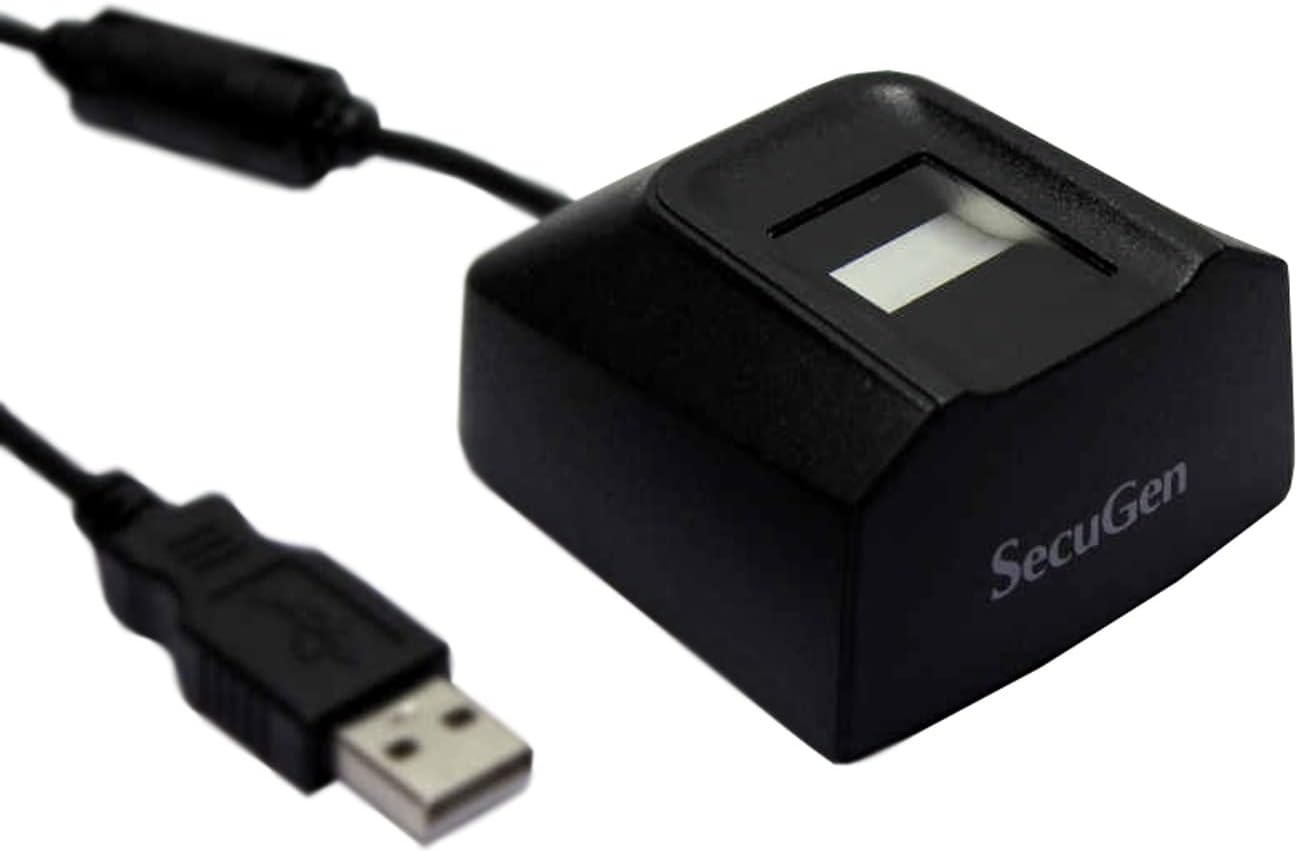
Figure 2: SecuGen Hamster Pro 20 USB Fingerprint Reader connected to its USB cable, illustrating its compact size and connectivity.
Arahan Operasi
1. Peletakan Jari
For optimal performance, place your finger flat on the sensor platen, ensuring the entire pad of your finger covers the surface. Apply gentle, consistent pressure.
2. Enrollment Process
The enrollment process typically involves registering your fingerprints with a specific software application. Follow the instructions provided by your chosen application (e.g., Windows Hello, third-party biometric software) to enroll your fingerprints. This usually involves scanning the same finger multiple times from different angles.
3. Authentication/Verification
When prompted by an application for fingerprint authentication, place your enrolled finger on the sensor. The device will capture your fingerprint and the software will verify it against the stored template.
Nota Penting:
The performance of automatic finger detection and self-adjusting scanning technologies is dependent on the application used. These features are fully realized when the device is used with applications built with SecuGen's algorithms.
Penyelenggaraan
1. Cleaning the Sensor
To maintain optimal performance, keep the sensor platen clean. Use a soft, lint-free cloth lightly dampened with water or a mild, non-abrasive cleaner. Do not use harsh chemicals or abrasive materials, as they can damage the sensor surface.
2. Penyimpanan
Store the device in a clean, dry environment away from direct sunlight and extreme temperatures. Avoid placing heavy objects on the device or its cable.
3. Pengendalian
While the device is rugged, avoid dropping it or subjecting it to excessive force. Do not attempt to disassemble the device, as this will void the warranty.
Menyelesaikan masalah
- Problem: Device not recognized by computer.
- Penyelesaian:
- Pastikan kabel USB disambungkan dengan selamat ke kedua-dua peranti dan komputer.
- Try connecting the device to a different USB port.
- Verify that the correct drivers are installed. Reinstall drivers if necessary.
- Mulakan semula komputer anda.
- Check Device Manager (Windows) or System Information (macOS) to see if the device is listed without errors.
- Problem: Fingerprint not recognized or enrollment fails.
- Penyelesaian:
- Pastikan jari anda bersih dan kering.
- Bersihkan permukaan sensor seperti yang diterangkan dalam bahagian Penyelenggaraan.
- Ensure proper finger placement, covering the entire platen.
- Try enrolling or authenticating with a different finger.
- Ensure the application you are using is compatible with the SecuGen device and its drivers are up to date.
- Problem: Device LED is off or not responding.
- Penyelesaian:
- Periksa sambungan USB.
- Ensure your computer's USB ports are providing power.
- Jika menggunakan hab USB, cuba sambungkan terus ke komputer.
Spesifikasi
| Ciri | Spesifikasi |
|---|---|
| Dimensi (L x W x H) | 2.3 x 2.12 x 1.24 inci |
| Berat badan | 4.2 auns |
| Resolusi Imej | 500 DPI |
| Saiz Imej | 300 x 400 Piksel |
| Platen Size | 0.71 x 0.9 inci |
| Kawasan Penderiaan Berkesan | 0.6 x 0.8 inci |
| Image Gray Scale | 256 tahap (8-bit) |
| Sumber Cahaya | LED hijau |
| Smart Capture Speed | 0.2 hingga 0.5 saat |
| Antaramuka USB | 2.0 Hi-speed |
| Bekalan Voltage | 5VDC (via USB) |
| Suhu Operasi | -20 hingga 65 Darjah C |
| Tahan Habuk/Air | IP54 Certified |
| Peranti Serasi | Desktop, Komputer riba |
Waranti dan Sokongan
Maklumat Waranti
SecuGen products typically come with a limited manufacturer's warranty. Please refer to the warranty card included with your product or visit the official SecuGen webtapak untuk terma dan syarat jaminan terperinci. Simpan bukti pembelian anda untuk tuntutan waranti.
Sokongan Teknikal
For technical assistance, driver updates, or further inquiries, please visit the official SecuGen support website or contact their customer service. Contact information can usually be found on the SecuGen website (www.secugen.com).
When contacting support, please have your product model (HU20-A) and serial number ready.
Ask a question about this manual
Ask about setup, troubleshooting, compatibility, parts, safety, or missing instructions. Manuals+ will review the question and use this page’s manual context to help answer it.