
Vivolink VLCP8B
Vivolink Control Panel 8 Button (VLCP8B) User Manual
Model: VLCP8B
pengenalan
This manual provides detailed instructions for the installation, operation, and maintenance of the Vivolink Control Panel 8 Button, model VLCP8B. Please read this manual thoroughly before using the device to ensure proper functionality and safety.
Maklumat Keselamatan
Sentiasa patuhi langkah berjaga-jaga keselamatan asas semasa menggunakan produk ini untuk mengurangkan risiko kebakaran, renjatan elektrik dan kecederaan kepada orang ramai. Simpan manual ini untuk rujukan pada masa hadapan.
- Jangan dedahkan peranti kepada kelembapan atau suhu yang melampau.
- Jangan cuba membuka atau mengubah suai peranti. Rujuk semua servis kepada kakitangan yang berkelayakan.
- Ensure the power supply used is compatible with the device's specifications.
- Jauhkan peranti daripada medan magnet yang kuat.
Kandungan Pakej
Sahkan bahawa semua item terdapat dalam pakej:
- Vivolink Control Panel 8 Button (VLCP8B)
- Skru Pemasangan (jika berkenaan)
- Panduan Mula Pantas (jika berkenaan)
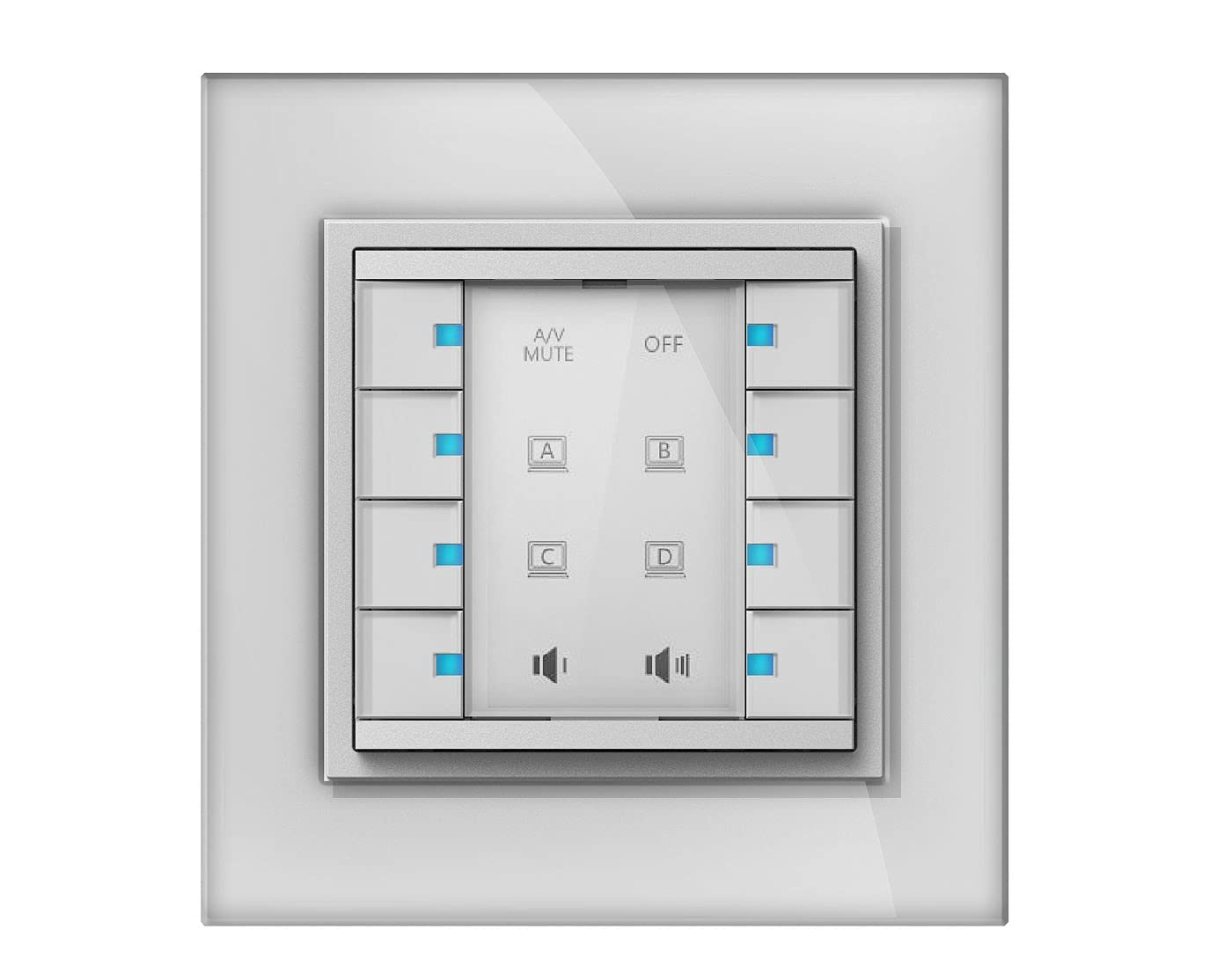
Image: The Vivolink Control Panel 8 Button, model VLCP8B, showing its front face with eight distinct buttons arranged in a grid.
Persediaan
1. Pemasangan Fizikal
The VLCP8B control panel is designed for wall mounting or integration into a standard equipment rack. Ensure the mounting surface is stable and can support the device's weight.
- Pilih Lokasi: Select a suitable location that allows for easy access and visibility, away from direct heat sources or excessive dust.
- Pemasangan: Use appropriate screws and anchors (not always included) to secure the control panel to the desired surface. Refer to the mounting template if provided with the physical product.
2. Sambungan
Connect the necessary cables to the control panel. The specific connections will depend on the system it is integrating with.
- Sambungan Kuasa: Connect the power adapter (if external) or power cable to the designated power input port.
- Kawalan Sambungan: Connect control cables (e.g., Ethernet, RS-232, USB) from the VLCP8B to the devices it will control, following the system's wiring diagram.
3. Menghidupkan
Once all physical and control connections are securely made, connect the power supply to an electrical outlet. The device should power on automatically, indicated by status lights (if present).
Arahan Operasi
The Vivolink Control Panel 8 Button is designed for intuitive operation. Each of the eight buttons can be programmed to perform specific functions within your integrated system.
1. Fungsi Butang Asas
Each button on the VLCP8B typically corresponds to a pre-programmed action. Pressing a button will trigger its assigned function.
- Akhbar Tunggal: Activates the primary function assigned to that button.
- Tekan lama: Some buttons may have a secondary function activated by pressing and holding for a few seconds. Refer to your system's configuration for specific long-press functions.
2. Customization and Programming
The functionality of the 8 buttons is determined by the system's programming. Customization is typically performed using dedicated software or a control system interface, not directly on the panel itself. Consult your system integrator or the Vivolink support website for programming guides and software tools.
Common functions that can be assigned to buttons include:
- Power On/Off for connected devices (e.g., projector, display)
- Source Selection (e.g., HDMI 1, VGA, DisplayPort)
- Volume Control (Up/Down/Mute)
- Lighting Scene Recall
- Macro Execution (a sequence of commands)
Penyelenggaraan
Regular maintenance ensures the longevity and optimal performance of your Vivolink Control Panel.
- Pembersihan: Use a soft, dry cloth to wipe the surface of the control panel. For stubborn marks, a slightly damp cloth with a mild, non-abrasive cleaner can be used. Ensure no liquid enters the device.
- Kemas kini Firmware: Periodically check the Vivolink support website for firmware updates. Updates can improve performance, add features, or resolve issues. Follow the provided instructions carefully when performing firmware updates.
- Pemeriksaan: Periodically inspect cables and connections for any signs of wear or damage.
Menyelesaikan masalah
If you encounter issues with your Vivolink Control Panel, refer to the following common problems and solutions:
| Masalah | Kemungkinan Punca | Penyelesaian |
|---|---|---|
| Panel tidak boleh dihidupkan. | Tiada bekalan kuasa atau sambungan yang rosak. | Check power cable connection to the panel and the electrical outlet. Ensure the outlet is functional. |
| Butang tidak bertindak balas. | Incorrect programming or communication issue. | Verify the control system's programming. Check control cable connections. Restart the control system and the panel. |
| Incorrect function triggered. | Button misconfiguration. | Review the button assignments in the control system's programming interface. |
If the problem persists after attempting these solutions, contact Vivolink technical support or your system integrator.
Spesifikasi
- model: VLCP8B
- Jenama: Vivolink
- Butang: 8 butang boleh diprogramkan
- Ketersambungan: (Assumed, based on typical control panels: e.g., Ethernet, RS-232, USB) - Specifics not provided in source data.
- Bekalan Kuasa: (Assumed, based on typical control panels: e.g., DC 5V) - Specifics not provided in source data.
- Dimensi: (Not provided in source data)
- Berat: (Not provided in source data)
Note: Detailed technical specifications may be available on the official Vivolink product page or in a separate technical datasheet.
Waranti dan Sokongan
Vivolink products are designed for reliability and performance. For information regarding warranty terms and conditions, please refer to the warranty card included with your product or visit the official Vivolink webtapak.
For technical assistance, troubleshooting, or service inquiries, please contact Vivolink customer support or your authorized dealer. Provide your product model (VLCP8B) and serial number (if applicable) when seeking support.
Vivolink Official Webtapak: www.vivolink.net