
1. Pengenalan
This manual provides detailed instructions for installing, configuring, and maintaining your GIGABYTE GA-B150M-D3H Micro ATX motherboard. The GA-B150M-D3H is designed to support 6th Generation Intel Core Processors and features Dual Channel DDR4 memory, PCIe Gen3 x4 M.2 connector, SATA Express, and 8-channel HD audio with Audio Noise Guard.
Please read this manual thoroughly before beginning installation to ensure proper setup and operation.
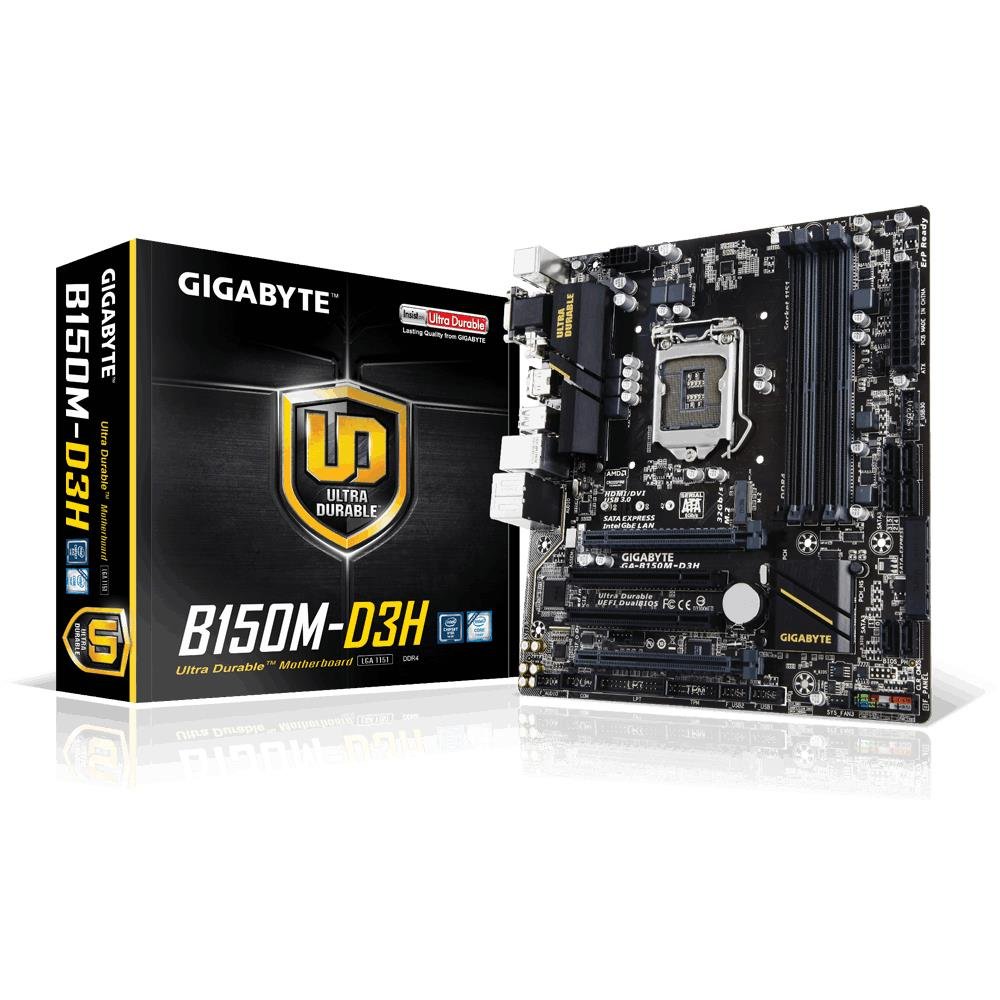
Image 1.1: GIGABYTE GA-B150M-D3H Micro ATX Motherboard. This image displays the overall layout of the motherboard, highlighting its compact Micro ATX form factor and various component slots.
2. Maklumat Keselamatan
Observe the following safety precautions to prevent damage to the motherboard and injury to yourself:
- Sentiasa putuskan sambungan kord kuasa daripada alur keluar dinding sebelum menyentuh mana-mana komponen.
- Pakai tali pergelangan tangan anti-statik atau kerap sentuh objek logam yang dibumikan untuk melepaskan elektrik statik.
- Kendalikan papan induk di tepinya untuk mengelak daripada menyentuh komponen sensitif.
- Jauhkan papan induk daripada kelembapan dan suhu yang melampau.
- Ensure proper ventilation within the computer case to prevent overheating.
3. Kandungan Pakej
Sahkan bahawa semua item terdapat dalam pakej motherboard anda:
- GIGABYTE GA-B150M-D3H Motherboard
- Manual Pengguna
- I / O Shield
- Kabel SATA
- Driver CD/DVD
Note: Contents may vary slightly depending on region or revision.
4. Susun Atur Papan Induk
Familiarize yourself with the various components and connectors on the GA-B150M-D3H motherboard.
Image 4.1: GIGABYTE GA-B150M-D3H Motherboard Layout. This image provides a visual reference for the location of key components such as the CPU socket, DIMM slots, PCIe slots, SATA ports, and M.2 connector.
Komponen Utama:
- Soket CPU LGA 1151: For 6th Generation Intel Core Processors.
- DDR4 DIMM Slots (4): Supports Dual Channel DDR4 memory up to 2133 MHz.
- Slot PCIe: Includes PCIe Gen3 x16 for graphics cards and PCIe x1 slots for expansion.
- M.2 Connector: Supports PCIe NVMe & SATA SSDs with up to 32Gb/s data transfer.
- SATA Express Connector: For up to 16Gb/s data transfer.
- Port SATA 6Gb/s: Untuk menyambungkan peranti storan SATA tradisional.
- 24-Pin ATX Power Connector: Main power input.
- 8-Pin ATX 12V Power Connector: CPU power input.
- Pengepala Panel Hadapan: For power button, reset button, LED indicators, and USB ports.
- Penyambung Audio: 8-channel HD Audio with high quality capacitors and Audio Noise Guard.
5. Persediaan dan Pemasangan
Ikuti langkah-langkah ini untuk pemasangan papan induk dan komponen anda dengan betul.
5.1. Memasang CPU
- Locate the LGA 1151 CPU socket.
- Buka tuil soket CPU dan angkat plat beban.
- Carefully align the CPU with the socket, ensuring the gold triangle on the CPU matches the triangle on the socket. Do not force the CPU into the socket.
- Turunkan plat beban dan pasangkannya dengan tuil.
5.2. Installing the CPU Cooler
Refer to your CPU cooler's instruction manual for specific installation steps. Ensure thermal paste is applied correctly between the CPU and cooler base.
5.3. Memasang Memori (RAM)
- Buka klip di kedua-dua hujung slot DIMM DDR4.
- Jajarkan modul memori dengan slot, pastikan takuk pada modul sepadan dengan kunci dalam slot.
- Tekan ke bawah dengan kuat pada kedua-dua hujung modul memori sehingga klip terpasang pada tempatnya.
- For dual-channel performance, install memory modules in matching colored slots (e.g., DIMM1 and DIMM2).
5.4. Installing Expansion Cards
- Remove the metal bracket from the desired PCIe slot on your computer case.
- Align the expansion card with the PCIe slot and press down firmly until it is seated correctly.
- Pasangkan kad dengan skru pada bekas komputer.
5.5. Connecting Storage Devices
- Peranti SATA: Connect one end of the SATA data cable to a SATA 6Gb/s port on the motherboard and the other end to your hard drive or SSD. Connect the SATA power cable from your power supply to the device.
- M.2 SSD: Masukkan SSD M.2 ke dalam slot M.2 pada sudut, kemudian tolaknya perlahan-lahan ke bawah dan selamatkannya dengan skru yang disediakan.
- SATA Express: If using a SATA Express device, connect it to the designated SATA Express connector.
5.6. Menyambung Penyambung Panel Hadapan
Connect the cables from your computer case's front panel (power button, reset button, HDD LED, power LED, front USB, front audio) to the corresponding headers on the motherboard. Refer to the motherboard layout diagram for exact locations and pin assignments.
5.7. Menyambungkan Bekalan Kuasa
- Connect the 24-pin ATX main power connector from your power supply to the 24-pin power socket on the motherboard.
- Connect the 8-pin ATX 12V CPU power connector to the 8-pin socket near the CPU.
- Pastikan semua sambungan kuasa selamat.
6. Arahan Operasi
6.1. But Pertama
After assembling all components, connect your monitor, keyboard, and mouse. Power on the system. The system should display the GIGABYTE splash screen and then enter the BIOS/UEFI setup or attempt to boot from a connected storage device.
6.2. Persediaan BIOS/UEFI
Untuk memasuki persediaan BIOS/UEFI, tekan butang DEL key repeatedly during the boot process when the GIGABYTE logo appears. Here you can configure system settings, boot order, and monitor hardware status. The GA-B150M-D3H features GIGABYTE UEFI Dual BIOS for enhanced reliability.
6.3. Pemasangan Pemandu
After installing your operating system, install the necessary drivers for the motherboard components. These can be found on the included driver CD/DVD or downloaded from the official GIGABYTE website. Key drivers include chipset, audio (Realtek ALC892 codec), LAN, and any integrated graphics drivers.
6.4. Pemasangan Sistem Pengendalian
Insert your operating system installation media (USB drive or DVD) and configure the boot order in the BIOS/UEFI to boot from it. Follow the on-screen instructions to install your preferred operating system (e.g., Windows 8.1, Windows 10).
7. Penyelenggaraan
7.1. Pembersihan
Regularly clean the interior of your computer case to prevent dust buildup, which can lead to overheating. Use compressed air to remove dust from fans, heatsinks, and motherboard components. Ensure the system is powered off and unplugged before cleaning.
7.2. Kemas Kini BIOS
GIGABYTE periodically releases BIOS updates to improve system stability, compatibility, and performance. Visit the official GIGABYTE website for your motherboard model (GA-B150M-D3H) to check for the latest BIOS version and follow the provided instructions for updating. Exercise caution during BIOS updates, as an interruption can render the motherboard inoperable.
8. Penyelesaian masalah
Bahagian ini menangani isu biasa yang mungkin anda hadapi.
8.1. No Power / System Does Not Turn On
- Check if the power supply is connected correctly to the motherboard (24-pin and 8-pin connectors).
- Pastikan suis bekalan kuasa berada dalam kedudukan ON.
- Sahkan bahawa kabel butang kuasa panel hadapan disambungkan dengan betul ke pengepala papan induk.
- Uji bekalan kuasa dengan sistem lain atau penguji bekalan kuasa.
8.2. Tiada Output Paparan
- Ensure the monitor is connected to the correct graphics output (either integrated graphics on the motherboard or a dedicated graphics card).
- Letakkan semula kad grafik dan modul memori.
- Try booting with only one memory module installed.
- Periksa sama ada monitor dihidupkan dan ditetapkan kepada sumber input yang betul.
8.3. Ketidakstabilan Sistem / Ranap
- Semak suhu CPU dan GPU untuk memastikan ia berada dalam had operasi yang selamat.
- Verify that all drivers are installed and up to date.
- Jalankan alat diagnostik memori untuk memeriksa RAM yang rosak.
- Ensure the power supply provides sufficient and stable power to all components.
9. Spesifikasi
Detailed technical specifications for the GIGABYTE GA-B150M-D3H motherboard:
| Ciri | Spesifikasi |
|---|---|
| Nama Model | GA-B150M-D3H |
| Faktor Bentuk | ATX Mikro (24.4sm x 22.5sm) |
| Soket CPU | LGA 1151 |
| Pemproses yang Serasi | 6th Generation Intel Core Processors |
| Chipset | Intel B150 Express Chipset |
| Teknologi Memori | DDR4 |
| Slot memori | 4 x DDR4 DIMM sockets (Dual Channel) |
| Kapasiti Memori Maks | 16 GB |
| Kelajuan Jam Memori | 2133 MHz |
| Slot PCIe | 1 x PCI Express x16, 1 x Total PCIe Ports |
| Antaramuka Penyimpanan | PCIe Gen3 x4 M.2, SATA Express, SATA 6Gb/s |
| Codec Audio | Realtek ALC892 codec, 8-channel HD Audio |
| Port USB | Total 8 USB Ports (including USB 2.0) |
| Penyambung Kuasa Utama | 24-Pin ATX |
| Penyambung Kuasa CPU | 8-Pin ATX 12V |
| Ciri Unik | GIGABYTE UEFI Dual BIOS, Audio Noise Guard with LED Trace Path Lighting, App Center (Easy Tune, Cloud Station) |
10. Waranti dan Sokongan
For warranty information, please refer to the warranty card included in your product package or visit the official GIGABYTE webtapak. Terma dan syarat waranti mungkin berbeza mengikut wilayah.
For technical support, driver downloads, BIOS updates, and further product information, please visit the GIGABYTE official support webtapak:
https://www.gigabyte.com/Support
When contacting support, please have your motherboard model (GA-B150M-D3H) and serial number ready.


