pengenalan
Terima kasih kerana membeliasing the DIAFIELD 1byone Ultra-Thin Wireless Keyboard. This manual provides detailed instructions on how to set up, operate, and maintain your new keyboard. Please read this manual thoroughly before use to ensure optimal performance and longevity of your device.
Produk Selesaiview
The DIAFIELD 1byone Ultra-Thin Wireless Keyboard is designed for versatility and convenience, featuring a compact design, a multi-function touchpad, and broad compatibility.

Figure 1: DIAFIELD 1byone Wireless Keyboard
Ciri-ciri Utama:
- Ultra Portability: Designed for use anywhere, anytime, with your smartphone, tablet, or Smart TV. Its compact design ensures easy transport and quick setup.
- Pad Sentuh Bersepadu: Features an ultra-thin touchpad that functions as a mouse, supporting various pre-set gestures for convenient navigation. The touchpad can also be disabled if not needed.
- Hayat Bateri Tahan Lama: Equipped with a 500 mAh built-in battery, providing up to 4 months of standby time or 90 hours of continuous use on a single charge.
- Spanish QWERTY Layout: Specifically designed for Spanish speakers, including common Spanish symbols and the 'Ñ' key. Ensure your system's keyboard language is set to Spanish for proper functionality.
- Kesambungan Bluetooth 3.0: Ensures fast and stable connections with tablets and other devices, providing synchronous input without delay. Setup is quick and easy.

Figure 2: Touchpad and Function Keys

Figure 3: Type-C Charging and Battery Life
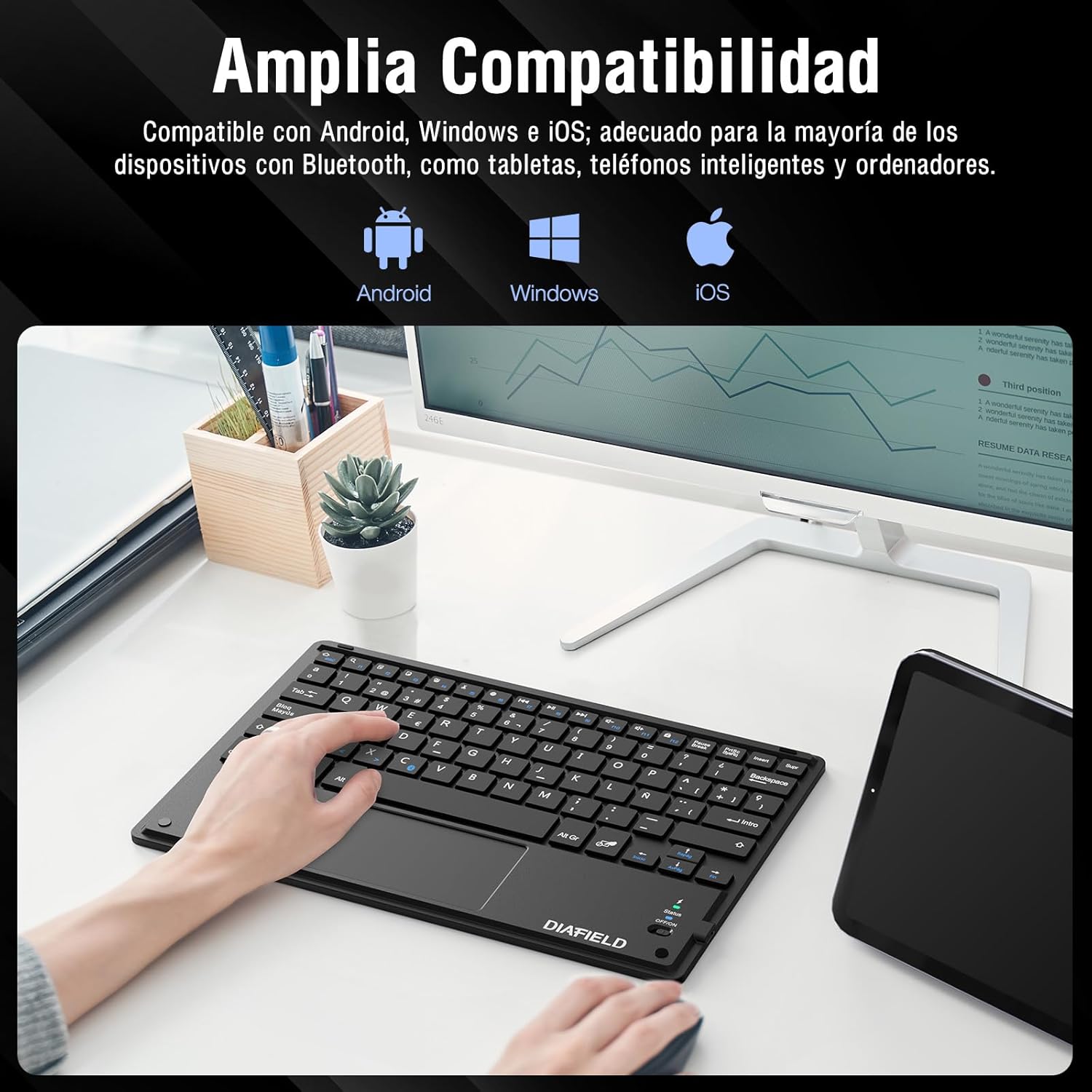
Figure 4: Broad Device Compatibility

Figure 5: Scissor-Type Key Mechanism

Rajah 6: Reka Bentuk Padat dan Ringan

Figure 7: Multi-touch Gestures

Figure 8: Keyboard in Use with Tablet
Panduan Persediaan
1. Mengecas Papan Kekunci
Before first use, ensure the keyboard is fully charged. Connect the provided USB-C cable to the keyboard's charging port and the other end to a USB power source (e.g., computer, wall adapter). The charging indicator light will show the charging status.
- Charging time: Less than 4 hours.
- Kapasiti bateri: 500 mAh.

Figure 9: Charging the Keyboard
2. Berpasangan Bluetooth
Follow these simple steps to pair your keyboard with your device:
- Turn on the keyboard by sliding the power switch to the "ON" position. The status indicator light will illuminate.
- Activate Bluetooth on your device (tablet, smartphone, computer, Smart TV).
- On your device, search for available Bluetooth devices. The keyboard will appear as "DIAFIELD KEYBOARD" or similar.
- Select the keyboard from the list to initiate pairing. Your device may prompt you to enter a pairing code displayed on the screen. Type this code on the keyboard and press Enter.
- Once paired, the status indicator light on the keyboard will turn off or change color, indicating a successful connection.
The keyboard supports quick connection and pairing with iOS, Android, and Windows systems.

Figure 10: Bluetooth Pairing on a Smartphone
Arahan Operasi
1. Menggunakan Pad Sentuh
The integrated touchpad supports various multi-touch gestures to enhance your productivity:
- Klik Kiri: Single tap with one finger.
- Klik kanan: Tap with two fingers.
- Zum Masuk/Keluar: Pinch in or out with two fingers.
- Scroll/Explore: Drag two fingers up or down, or left or right.
- Switch Windows: Swipe three fingers horizontally.
- Open Task Manager (Windows): Swipe three fingers upwards.
Figure 11: Touchpad Multi-touch Gestures
2. Kekunci Fungsi
The top row of keys (F1-F12) includes multimedia and shortcut functions. To use these functions, press the Fn kekunci serentak dengan kekunci fungsi yang dikehendaki.
| Gabungan Kunci | Fungsi |
|---|---|
| Fn + Esc | Rumah |
| Fn + F1 | Cari |
| Fn + F2 | salin |
| Fn + F3 | potong |
| Fn + F4 | tampal |
| Fn + F5 | Kelantangan Kurang |
| Fn + F6 | Kelantangan Naik |
| Fn + F7 | Trek Sebelumnya |
| Fn + F8 | Main/Jeda |
| Fn + F9 | Trek Seterusnya |
| Fn + F10 | bisu |
| Fn + F11 | Pilih Semua |
| Fn + F12 | Kunci Skrin |

Figure 12: Keyboard Function Keys
Penyelenggaraan
Proper maintenance will extend the life of your keyboard:
- Pembersihan: Gunakan kain lembut, kering dan bebas bulu untuk membersihkan permukaan papan kekunci. Untuk kotoran degil, gosok sedikitampen kain dengan air atau larutan pembersih lembut. Elakkan kelembapan berlebihan.
- Storan: Simpan papan kekunci di tempat yang sejuk dan kering jauh dari cahaya matahari langsung dan suhu yang melampau.
- Penjagaan Bateri: To preserve battery life, avoid fully discharging the keyboard frequently. If storing for a long period, charge it to about 50% and recharge every few months.
- Elakkan Cecair: Keep the keyboard away from liquids to prevent damage to internal components.
Menyelesaikan masalah
Isu dan Penyelesaian Biasa:
- Papan kekunci tidak bersambung melalui Bluetooth:
- Pastikan papan kekunci dicas dan dihidupkan.
- Pastikan Bluetooth didayakan pada peranti anda.
- Cuba nyahpasang dan pasang semula papan kekunci daripada tetapan Bluetooth peranti anda.
- Restart both the keyboard (turn off/on) and your device.
- Characters typed do not match the keys (e.g., @ instead of "):
This often happens when the keyboard layout setting on your device does not match the physical layout of the keyboard (Spanish QWERTY). You need to change your device's keyboard input language to Spanish.
For Android devices, follow these general steps (may vary slightly by device model):
- Pergi ke tetapan.
- Navigasi ke Pengurusan Am (or System).
- Pilih Bahasa dan input.
- Under "Physical keyboard" or "Keyboards," find your connected keyboard (e.g., "DIAFIELD KEYBOARD").
- Tap on the keyboard name and then select Sediakan susun atur papan kekunci or Configure keyboard layouts.
- Ensure "Spanish (ES)" is selected or enabled. You might need to disable other languages.
- Alternatively, you can often switch layouts by pressing Ctrl + Spacebar pada papan kekunci.

Figure 13: Resolving Keyboard Layout Mismatch
- Pad sentuh tidak bertindak balas:
- Ensure the touchpad is not accidentally disabled (check for a function key combination that toggles the touchpad).
- Bersihkan permukaan pad sentuh.
- Reconnect the keyboard via Bluetooth.
Spesifikasi
| Ciri | Perincian |
|---|---|
| Jenama | 1 BY ONE |
| Pengeluar | DIAFIELD |
| Nombor Model | O0000-0713 |
| Dimensi Produk | 25.8 x 17.2 x 0.4 cm |
| Berat badan | 259 g |
| warna | Hitam |
| Sumber Kuasa | Bateri |
| Jenis Bateri | Bateri Litium Bersepadu |
| Bateri Voltage | 4.2 Volt |
| Bilangan Bateri | 1 |
| Platform Perkakasan | Computer, Laptop, Smartphone, Tablet, Television |
| Keserasian Sistem Pengendalian | iOS, Android, Windows |
| Teknologi Ketersambungan | Bluetooth 3.0 |
| Penerangan Papan Kekunci | Multimedia |
| Penggunaan yang Disyorkan | Penggunaan Harian |
| Ciri Khas | Pad jejak |
| Bilangan Kunci | 81 |
| Keyboard Backlight Color | Warna Tunggal |
| Tarikh Tersedia Pertama | 24 Ogos 2015 |
Waranti dan Sokongan
For warranty information and technical support, please refer to the contact details provided with your product packaging or visit the official 1 BY ONE webtapak. Simpan resit pembelian anda sebagai bukti pembelian untuk sebarang tuntutan waranti.
If you encounter any issues not covered in this manual, please contact customer support for assistance.