
pengenalan
This manual provides detailed instructions for the installation, operation, and maintenance of your COMFAST CF-WP500M 500Mbps HomePlug AV Powerline Network Adapters. Please read this manual thoroughly before using the product to ensure proper setup and optimal performance. These adapters allow you to extend your internet connection using your home's existing electrical wiring, providing a stable and high-speed network connection without new cables.
Kandungan Pakej
Sahkan bahawa semua item terdapat dalam pakej anda:
- 2 x COMFAST CF-WP500M Powerline Adapters
- 2 x Kabel Ethernet
- 1 x Quick Installation Guide (This document serves as a comprehensive guide)
Produk Selesaiview
The COMFAST CF-WP500M is a compact HomePlug AV powerline adapter designed for easy network extension. Each adapter features LED indicators for status monitoring and an RJ45 Ethernet port for device connectivity.
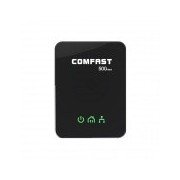
Imej: Depan view of the COMFAST CF-WP500M Powerline Adapter, showing the COMFAST logo and three LED indicators for Power, Powerline, and Ethernet status.
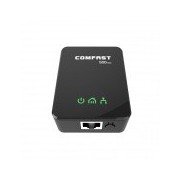
Imej: Bahagian hadapan atas view of the COMFAST CF-WP500M Powerline Adapter, highlighting the RJ45 Ethernet port at the bottom and the three LED indicators on the front panel.
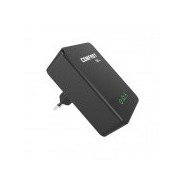
Imej: Sisi view of the COMFAST CF-WP500M Powerline Adapter, clearly showing the integrated EU type electrical plug for direct wall socket connection.
Penunjuk LED:
- Power LED (⚡):
- On: Device is powered on.
- Mati: Peranti dimatikan.
- Powerline LED (🏠):
- On: Connected to a powerline network.
- Flashing: Data transmission over the powerline network.
- Off: Not connected to a powerline network.
- Ethernet LED (💻):
- On: Ethernet port is connected to a device.
- Flashing: Data transmission over the Ethernet port.
- Mati: Tiada sambungan Ethernet.
Persediaan
Follow these steps to set up your COMFAST CF-WP500M Powerline Network Adapters:
- Sambungkan Penyesuai Pertama: Plug one powerline adapter directly into a wall electrical outlet near your internet router. Avoid power strips or surge protectors as they can interfere with performance.
- Sambung ke Penghala: Use one of the provided Ethernet cables to connect the powerline adapter's RJ45 port to an available LAN port on your internet router.
- Sambungkan Penyesuai Kedua: Plug the second powerline adapter directly into a wall electrical outlet in the room where you need network access.
- Sambung ke Peranti: Use the second Ethernet cable to connect the second powerline adapter's RJ45 port to your computer, smart TV, game console, or other network-enabled device.
- Sahkan Sambungan: Wait for the Powerline LED on both adapters to turn solid green. This indicates a successful powerline connection. The Ethernet LED should also be on or flashing if a device is connected and active.
- Pairing (Optional, for Security or New Devices): If the adapters do not connect automatically or if you wish to secure your network, press the 'Pair' button (if available, typically a small button on the side or bottom) on one adapter for 1-2 seconds, then within two minutes, press the 'Pair' button on the second adapter for 1-2 seconds. The Powerline LED will flash during pairing and become solid when successful.
Arahan Operasi
Once set up, your powerline network operates automatically. The adapters will establish a connection through your home's electrical wiring, extending your network.
- Akses Rangkaian: Any device connected via Ethernet to the second powerline adapter will have direct access to your internet and local network.
- Prestasi: For optimal performance, ensure adapters are plugged directly into wall outlets. Avoid outlets controlled by a wall switch if continuous operation is desired.
- Adding More Adapters: To expand your powerline network, purchase additional COMFAST HomePlug AV compatible adapters and follow the pairing instructions.
Penyelenggaraan
Proper maintenance ensures the longevity and performance of your powerline adapters:
- Pembersihan: Gently wipe the adapters with a dry, soft cloth. Do not use liquid cleaners or aerosols.
- penempatan: Keep adapters in well-ventilated areas. Avoid covering them or placing them near heat sources.
- Keadaan Persekitaran: Operate the adapters within their specified temperature and humidity ranges.
- Kemas kini Firmware: Semak pegawai COMFAST webtapak secara berkala untuk sebarang kemas kini perisian tegar yang tersedia untuk model anda.
Menyelesaikan masalah
Jika anda menghadapi masalah, rujuk kepada masalah dan penyelesaian biasa berikut:
- Tiada LED Kuasa:
- Ensure the adapter is securely plugged into a working electrical outlet.
- Uji saluran keluar dengan peranti lain.
- Powerline LED is Off:
- Ensure both adapters are plugged into wall outlets on the same electrical circuit.
- Avoid power strips, surge protectors, or extension cords.
- Try plugging the adapters into different outlets.
- Perform the pairing process as described in the Setup section.
- Ethernet LED is Off:
- Check the Ethernet cable connection between the adapter and your device/router.
- Pastikan peranti yang disambungkan dihidupkan dan berfungsi dengan betul.
- Cuba kabel Ethernet yang berbeza.
- Kelajuan Rangkaian Perlahan:
- Ensure adapters are plugged directly into wall outlets, not power strips.
- Large electrical appliances (e.g., washing machines, refrigerators) on the same circuit can cause interference. Try moving adapters to different outlets.
- Check the quality of your home's electrical wiring. Older or faulty wiring can impact performance.
Spesifikasi
| Model | CF-WP500M |
| Standard | HomePlug AV |
| Kadar Data | Sehingga 500Mbps |
| Antara muka | 1 x Port Ethernet RJ45 10/100Mbps |
| Jenis Palam | Palam EU |
| Penunjuk LED | Power, Powerline, Ethernet |
| Penggunaan Kuasa | Typically < 2W |
| Suhu Operasi | 0 ℃ hingga 40 ℃ (32 ℉ hingga 104 ℉) |
| Kelembapan Operasi | 10% hingga 90% tidak terkondensasi |
Waranti dan Sokongan
COMFAST products are designed for reliability and performance. For specific warranty information, please refer to the warranty card included with your product or visit the official COMFAST website. For technical support, troubleshooting assistance, or further inquiries, please contact COMFAST customer service through the channels provided on their official webtapak.