
pengenalan
This manual provides instructions for the Datalogic Barcodescanner Touch TD1100 90 Light, model TD1120-BK-90K1. It covers essential information for setting up, operating, maintaining, and troubleshooting your device to ensure optimal performance. Please read this manual thoroughly before using the scanner.
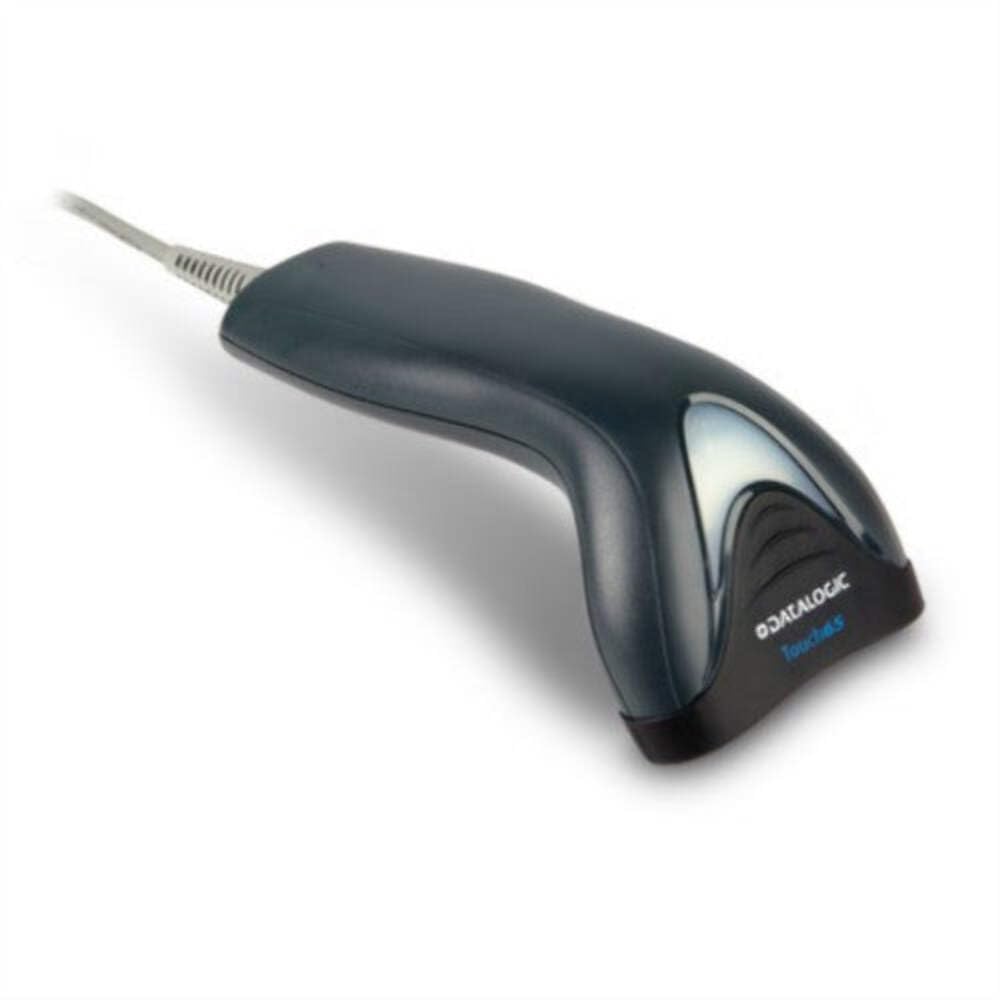
Image: The Datalogic Touch TD1100 90 Light barcode scanner, showing its ergonomic design and integrated cable.
Persediaan
1. Membongkar
Keluarkan semua komponen dari pembungkusan dengan berhati-hati. Sahkan bahawa semua item ada:
- Datalogic Touch TD1100 90 Light Barcode Scanner
- Kabel USB (bersepadu)
- Panduan Mula Pantas (jika disertakan)
2. Menyambungkan Pengimbas
The TD1120-BK-90K1 model connects via a USB interface. Follow these steps:
- Cari port USB yang tersedia pada komputer anda (desktop atau komputer riba).
- Insert the USB connector of the scanner's cable firmly into the USB port.
- The operating system should automatically detect the new hardware and install the necessary drivers. This process may take a few moments.
- Once drivers are installed, the scanner will typically emit a short beep or an indicator light will illuminate, signifying it is ready for use.
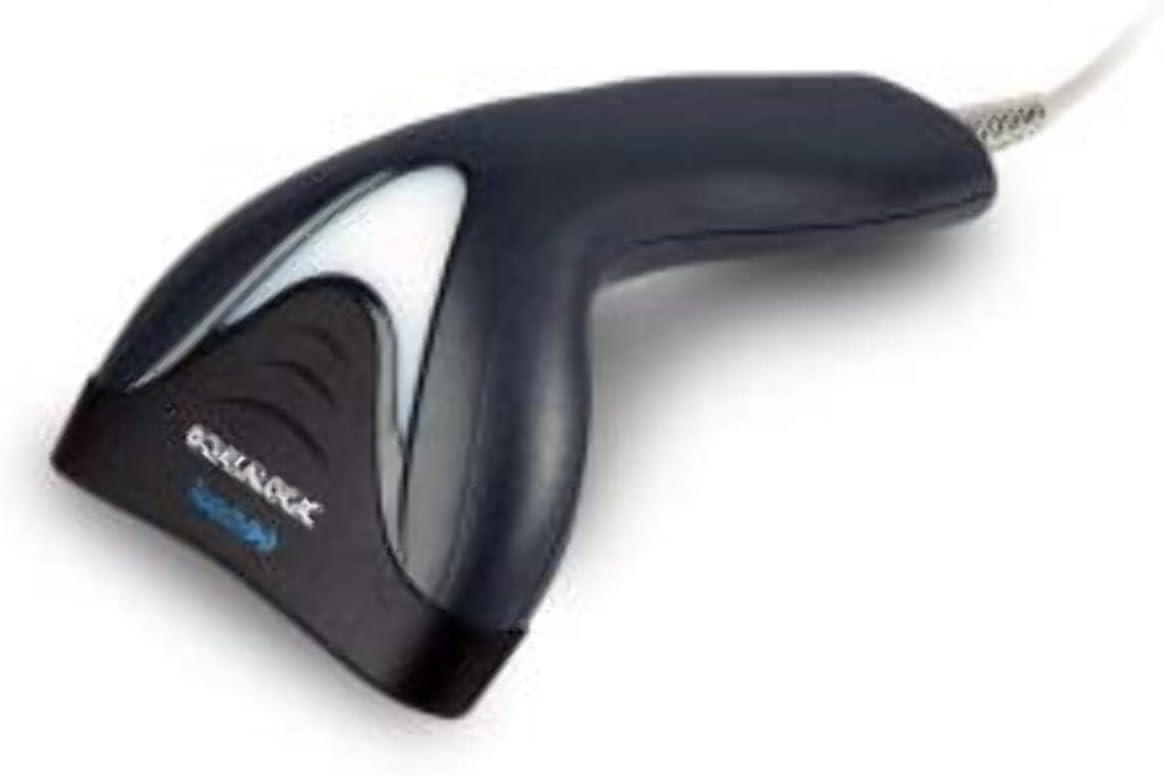
Imej: Sisi view of the Datalogic Touch TD1100 90 Light barcode scanner, highlighting the integrated cable for connection.
Arahan Operasi
1. Basic Scanning Procedure
Untuk mengimbas kod bar:
- Pastikan pengimbas disambungkan dan dihidupkan.
- Open an application on your computer where you want the scanned data to appear (e.g., a text editor, spreadsheet, or POS software).
- Hold the scanner with the scanning window facing the barcode.
- Press and hold the trigger button. A red aiming line or light will project from the scanning window.
- Position the aiming line across the entire barcode.
- Once the barcode is successfully read, the scanner will emit a beep and/or the indicator light will flash green. The data will then appear in your active application.
- Lepaskan butang pencetus.
2. Scanning Techniques
- Jarak Optimum: Hold the scanner at an appropriate distance from the barcode, typically between 2-10 cm (1-4 inches), depending on the barcode size and density.
- Sudut: Scan barcodes at a slight angle to avoid direct reflection, which can interfere with reading.
- Damaged Barcodes: For poorly printed or damaged barcodes, try scanning from different angles or distances.
Penyelenggaraan
1. Membersihkan Pengimbas
Regular cleaning helps maintain optimal scanning performance.
- Tetingkap Pengimbasan: Gunakan kain yang lembut dan tidak berbulu dampened with a mild, non-abrasive cleaner (e.g., isopropyl alcohol or glass cleaner) to gently wipe the scanning window. Avoid harsh chemicals or abrasive materials.
- Luaran: Lap bahagian luar casing dengan lembut, damp cloth. Do not allow liquids to enter the scanner.
- Pastikan pengimbas diputuskan sambungannya daripada sumber kuasa sebelum membersihkannya.
2. Penyimpanan
When not in use, store the scanner in a clean, dry environment, away from direct sunlight, extreme temperatures, and corrosive materials.
Menyelesaikan masalah
If you encounter issues with your Datalogic TD1100 scanner, refer to the following common problems and solutions:
| Masalah | Kemungkinan Punca | Penyelesaian |
|---|---|---|
| Pengimbas tidak dapat dihidupkan atau bertindak balas. | Loose cable connection, faulty USB port, power issue. |
|
| Pengimbas tidak membaca kod bar. | Incorrect scanning technique, damaged barcode, dirty scanning window, incompatible barcode type, application not ready. |
|
| Data yang diimbas dipaparkan dengan salah. | Keyboard wedge settings, incorrect language settings. |
|
Spesifikasi
Key technical specifications for the Datalogic Touch TD1100 90 Light (TD1120-BK-90K1):
- Nombor Model: TD1120-BK-90K1
- Jenama: Datalogik
- Kadar Imbasan: 90 bingkai sesaat (fps)
- Teknologi Ketersambungan: Bluetooth
- Peranti Serasi: Desktop, Komputer riba
- Sumber Kuasa: Dikuasakan Bateri
- Berat Barang: 153 Gram
- Sudut Sebenar daripada View: 3.5 Darjah
- Pengeluar: Datalogik
Note: Some specifications like "Battery Powered" and "Bluetooth" might be generic for the TD1100 series. The TD1120-BK-90K1 is primarily a wired USB scanner.
Waranti dan Sokongan
Maklumat Waranti
Datalogic products are covered by a standard manufacturer's warranty. For specific warranty terms and conditions, please refer to the warranty card included with your product or visit the official Datalogic webtapak. Simpan bukti pembelian anda untuk tuntutan waranti.
Sokongan Teknikal
For technical assistance, troubleshooting beyond this manual, or to inquire about repairs, please contact Datalogic customer support. You can typically find contact information on the Datalogic website or in the documentation provided with your scanner.
- Datalogic Official Webtapak: www.datalogic.com
- Sumber Sokongan: Check the support section of the website for FAQs, drivers, and additional documentation.