
pengenalan
The TomTom XL 340S is a portable GPS navigator designed to provide reliable and efficient navigation for your journeys. This device comes preloaded with detailed maps of the US, Canada, and Mexico, ensuring comprehensive coverage for your travels across North America. It features a 4.3-inch touchscreen display for intuitive interaction and clear map viewing.
Ciri-ciri utama termasuk:
- Preloaded maps of the US, Canada, and Mexico with Map Share technology for easy modifications and updates.
- Over 7 million points of interest (POIs) across various categories, including gas stations, restaurants, hotels, and ATMs.
- IQ Routes Technology, which calculates the fastest route based on the time of day, optimizing travel time and fuel efficiency.
- Advanced Lane Guidance, providing clear visual instructions on which lane to use for upcoming turns and exits.
- Turn-by-turn voice directions, including spoken street and place names, for hands-free navigation.
This manual provides essential information on setting up, operating, maintaining, and troubleshooting your TomTom XL 340S to ensure optimal performance and a smooth navigation experience.
Persediaan dan Pemasangan
Apa yang ada dalam Kotak
Upon unboxing your TomTom XL 340S, verify that all components are present:
- TomTom XL 340S GPS Device
- Pemasangan Kereta
- USB Cable (for charging and computer connection)
- Pengecas Kereta
- Bateri Lithium Ion (prapasang)
Mengecas Peranti
Before first use, fully charge your TomTom XL 340S. Connect the device to the car charger using the provided USB cable and plug it into your vehicle's 12V power outlet. Alternatively, you can charge it by connecting the USB cable to a computer's USB port. The battery indicator on the screen will show charging progress.
Memasang Peranti
The TomTom XL 340S comes with a versatile mount for secure placement in your vehicle. The device supports both dashboard and windshield mounting options.
- Pemasangan cermin depan: Clean the desired area on your windshield. Press the suction cup firmly against the glass and flip the lever to secure it.
- Pemasangan Papan Pemuka: Ensure the dashboard surface is clean and flat. Attach the mount to the dashboard using the adhesive disc (if provided with your bundle) or by placing it on a non-slip mat.
- Attach the TomTom XL 340S device to the mount. Ensure it clicks securely into place.
- Laraskan sudut peranti untuk optimum viewtanpa menghalang anda view jalan raya.

Figure 1: TomTom XL 340S mounted, showing the device's screen and its attachment to the mount.

Rajah 2: Belakang view of the TomTom XL 340S, highlighting the EasyPort mounting system.
Menghidupkan/Mematikan
To power on your device, press and hold the power button located on the unit until the TomTom logo appears. To power off, press and hold the power button again until the shutdown prompt appears, then confirm.
Operating Your TomTom XL 340S
Navigasi Asas
The TomTom XL 340S features a user-friendly touchscreen interface for entering destinations and managing routes.
- Memasuki Destinasi: From the main menu, tap "Navigate to..." or "Plan route". You can then choose to enter an address, select a Point of Interest, or choose from your Favourites or Recent Destinations.
- Route Calculation: Once a destination is entered, the device will calculate the fastest route using IQ Routes Technology, which considers typical traffic patterns based on the time of day.
- Following Directions: The device will provide clear turn-by-turn voice instructions, including street names, and visual cues on the screen.
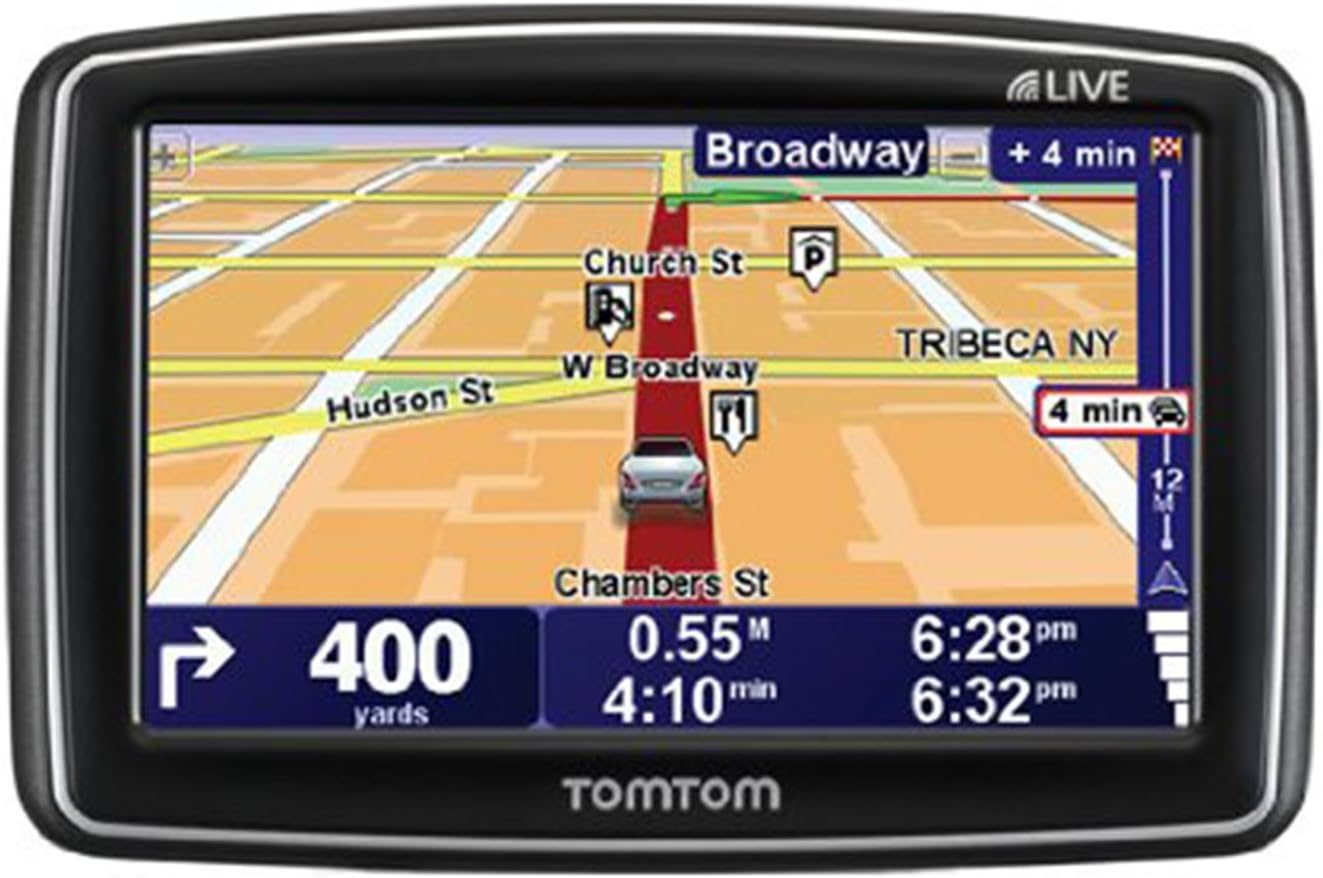
Figure 3: The TomTom XL 340S display showing an active navigation route with lane guidance and estimated arrival times.
Advanced Lane Guidance
When approaching complex junctions or highway exits, the Advanced Lane Guidance feature will display a realistic representation of the road ahead, indicating the correct lane to be in. This helps prevent missed turns and ensures confident navigation.
Tempat Menarik (POI)
Your TomTom XL 340S is preloaded with millions of POIs. You can search for specific categories like gas stations, restaurants, hotels, or ATMs near your current location or along your route. To find a POI, select "Navigate to..." then "Point of Interest".
Penyelenggaraan
Membersihkan Peranti Anda
To maintain the clarity of your screen and the device's overall appearance, clean it regularly. Use a soft, lint-free cloth, slightly dampened with water or a screen cleaner. Avoid abrasive materials or harsh chemicals, which can damage the screen or casing.
Software and Map Updates
To ensure your device has the latest maps and software features, it is recommended to regularly connect it to a computer with internet access. Use the TomTom HOME software (available for download from the official TomTom website) to check for and install updates. This process typically involves connecting the device via the supplied USB cable.

Figure 4: TomTom XL 340S device shown with its car charger and USB cable, essential for charging and updates.
Penjagaan Bateri
The TomTom XL 340S is powered by a Lithium Ion battery. To prolong battery life:
- Elakkan daripada mendedahkan peranti kepada suhu yang melampau (panas atau sejuk).
- Charge the battery fully before long periods of non-use.
- If storing for an extended period, charge the battery to about 50% and store in a cool, dry place.
Menyelesaikan masalah
This section addresses common issues you might encounter with your TomTom XL 340S.
Peranti Tidak Dihidupkan
- Ensure the device is fully charged. Connect it to the car charger or a computer via USB for at least 30 minutes.
- Perform a soft reset: Press and hold the power button for at least 15-20 seconds until you hear a drum roll sound or the device restarts.
No GPS Signal / Slow Satellite Acquisition
- Pastikan peranti mempunyai jelas view of the sky. Obstructions like tall buildings, tunnels, or dense foliage can interfere with GPS reception.
- Move to an open area. Initial satellite acquisition can take a few minutes, especially after being off for a long time or traveling a significant distance.
- Check for software updates, as these can improve GPS performance.
Device Not Connecting to Computer
- Ensure the USB cable is securely connected to both the device and the computer. Try a different USB port.
- Restart both the TomTom device and your computer.
- Ensure you have the latest version of TomTom HOME software installed on your computer.
- Try a different USB cable if available, as cables can sometimes be faulty.
Skrin Tidak Responsif
- Perform a soft reset as described above.
- Pastikan skrin bersih dan bebas daripada serpihan.
Jika langkah ini tidak menyelesaikan isu anda, sila rujuk bahagian Sokongan untuk mendapatkan bantuan lanjut.
Spesifikasi
| Ciri | Perincian |
|---|---|
| Dimensi Produk | 0.9 x 3.2 x 4.7 inci |
| Berat Barang | 6.9 auns |
| Saiz Skrin | 4.3 Inci |
| Resolusi | 480 x 272 piksel |
| Input Antara Muka Manusia | Skrin sentuh |
| Teknologi Ketersambungan | USB |
| Ciri Khas | Lane Assist, IQ Routes Technology, Map Share |
| Jenis Peta | North America (US, Canada, Mexico) |
| Jenis Bateri | 1 bateri Lithium Ion (termasuk) |
| Jenis Pemasangan | Pemasangan Papan Pemuka, Pemasangan Cermin Depan |
Waranti dan Sokongan
Maklumat Waranti
For detailed information regarding the warranty coverage for your TomTom XL 340S, please refer to the documentation included with your purchase or visit the official TomTom webtapak. Terma dan syarat waranti mungkin berbeza mengikut wilayah dan peruncit.
Sokongan Pelanggan
If you require further assistance, have questions, or encounter issues not covered in this manual, please contact TomTom customer support. You can find support resources, FAQs, and contact information on the official TomTom webtapak:
Visit the Official TomTom Store Page
Regularly checking the official website for updated manuals, software, and support articles is recommended.