
pengenalan
The Iomega Prestige Desktop Hard Drive USB 2.0 offers a simple and reliable solution for expanding your storage capacity. This manual provides essential information for setting up, operating, and maintaining your device.

Image: The Iomega Prestige 500 GB External Hard Drive, silver, standing upright on a desk with its included stand, positioned next to a computer monitor, lamp, and keyboard.
Kandungan Pakej
- Iomega Prestige 500 GB USB 2.0 Desktop External Hard Drive
- USB 2.0 Cable
- Penyesuai Kuasa
- Dudukan Desktop
- Panduan Mula Pantas
Ciri-ciri Produk
- kapasiti: 500 GB for ampstoran data.
- Antara muka: USB 2.0 for broad compatibility.
- Reka bentuk: Stylish dark silver brushed aluminum construction with included stand for vertical placement.
- Kemudahan Penggunaan: Plug-and-play functionality.
- Kuasa: External power adapter for stable operation.
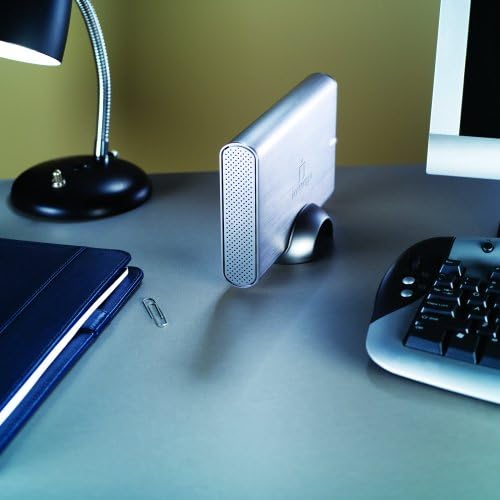
Imej: Depan view of the Iomega Prestige External Hard Drive, showcasing its brushed silver finish and the Iomega logo, with the stand visible at the bottom.
Persediaan
1. Sambungan Fizikal
- Place the hard drive on a stable, flat surface, or use the included stand for vertical orientation. Ensure adequate ventilation.
- Connect the power adapter to the hard drive's power input port and then plug it into a wall outlet.
- Connect one end of the USB 2.0 cable to the USB port on the hard drive.
- Sambungkan hujung kabel USB 2.0 yang satu lagi ke port USB yang tersedia pada komputer anda.
- Press the power button on the hard drive to turn it on. The power indicator light should illuminate.
2. Initial Setup (Windows/macOS)
The drive is pre-formatted for Windows. For macOS, reformatting is required.
Untuk Windows:
The drive should be automatically detected and appear as a new drive letter in "My Computer" or "This PC". No additional drivers are typically required.
Untuk macOS:
- Connect the drive as described above.
- Buka "Utiliti Cakera" (Aplikasi > Utiliti > Utiliti Cakera).
- Select the Iomega drive from the sidebar.
- Click "Erase".
- Choose a format (e.g., "Mac OS Extended (Journaled)") and a scheme (e.g., "GUID Partition Map").
- Klik "Padam" sekali lagi untuk mengesahkan. Warning: This will delete all data on the drive.
Mengendalikan Peranti
1. Pemindahan Data
Untuk memindahkan files, simply drag and drop them to and from the Iomega drive icon on your computer. You can also use copy and paste functions.
2. Penyingkiran Selamat
Always safely eject the hard drive before disconnecting it or turning off its power to prevent data corruption.
Untuk Windows:
- Click the "Safely Remove Hardware and Eject Media" icon in the system tray.
- Select the Iomega drive from the list.
- Wait for the "Safe to Remove Hardware" message before disconnecting.
Untuk macOS:
- Drag the Iomega drive icon from your desktop to the Trash icon in the Dock (the Trash icon will change to an Eject icon).
- Alternatively, right-click (or Control-click) the drive icon and select "Eject".
Penyelenggaraan
- Penjagaan Fizikal: Keep the drive in a clean, dry environment. Avoid extreme temperatures and direct sunlight.
- Pengudaraan: Ensure the drive's ventilation holes are not obstructed to prevent overheating.
- Sandaran Data: Regularly back up critical data from your external drive to another location to prevent data loss.
- Kemas kini Firmware: Check the official Iomega support website for any available firmware updates for your model.
Menyelesaikan masalah
Pemanduan Tidak Dikesan:
- Ensure the power adapter is securely connected and the drive is powered on.
- Verify the USB cable is firmly connected to both the drive and the computer.
- Cuba port USB lain pada komputer anda.
- Uji dengan kabel USB yang berbeza jika ada.
- Mulakan semula komputer anda.
Kelajuan Pemindahan Lambat:
- Ensure you are using a USB 2.0 port on your computer.
- Elakkan memindahkan banyak files simultaneously; compressing them into an archive can improve speed.
- Tutup aplikasi lain yang mungkin menggunakan sumber sistem.
Drive Makes Unusual Noises:
A slight hum is normal. However, if you hear clicking, grinding, or loud scraping sounds, immediately back up any accessible data and discontinue use. Contact support if necessary.
Spesifikasi
| Nombor Model | 34270 |
| Kapasiti Storan Digital | 500 GB |
| Antara Muka Cakera Keras | USB 2.0 |
| Teknologi Ketersambungan | USB |
| Faktor Bentuk Cakera Keras | 3.5 Inci |
| Kelajuan Putaran Cakera Keras | 7200 RPM |
| Kadar Pemindahan Data | Up to 480 Megabytes Per Second (USB 2.0) |
| Cache Memory Installed Size | 8 MB |
| Peranti Serasi | PC Desktop |
| warna | Perak |
| Berat Barang | 2.45 Paun (lebih kurang 1.11 kg) |
Waranti dan Sokongan
The Iomega Prestige Hard Drive comes with a Waranti 3 tahun with product registration. For technical support, warranty claims, or further assistance, please visit the official Iomega support webtapak atau hubungi perkhidmatan pelanggan mereka.
Untuk maklumat sokongan yang paling terkini, sila rujuk www.iomega.com/support (Nota: Ini ialah pemegang tempat URL, please refer to your product's official documentation for the correct support link.)