
Siri Apple 4
Apple Watch Series 4 Complete Guide: A Step by Step Beginner’s User Manual
Model: Siri 4
pengenalan
This guide provides comprehensive instructions for operating the Apple Watch Series 4. It covers essential functions, advanced features, and troubleshooting tips to help users effectively utilize their device.
The Apple Watch Series 4 is a sophisticated smartwatch designed to integrate seamlessly with your daily life, offering features for communication, health monitoring, and personal organization.
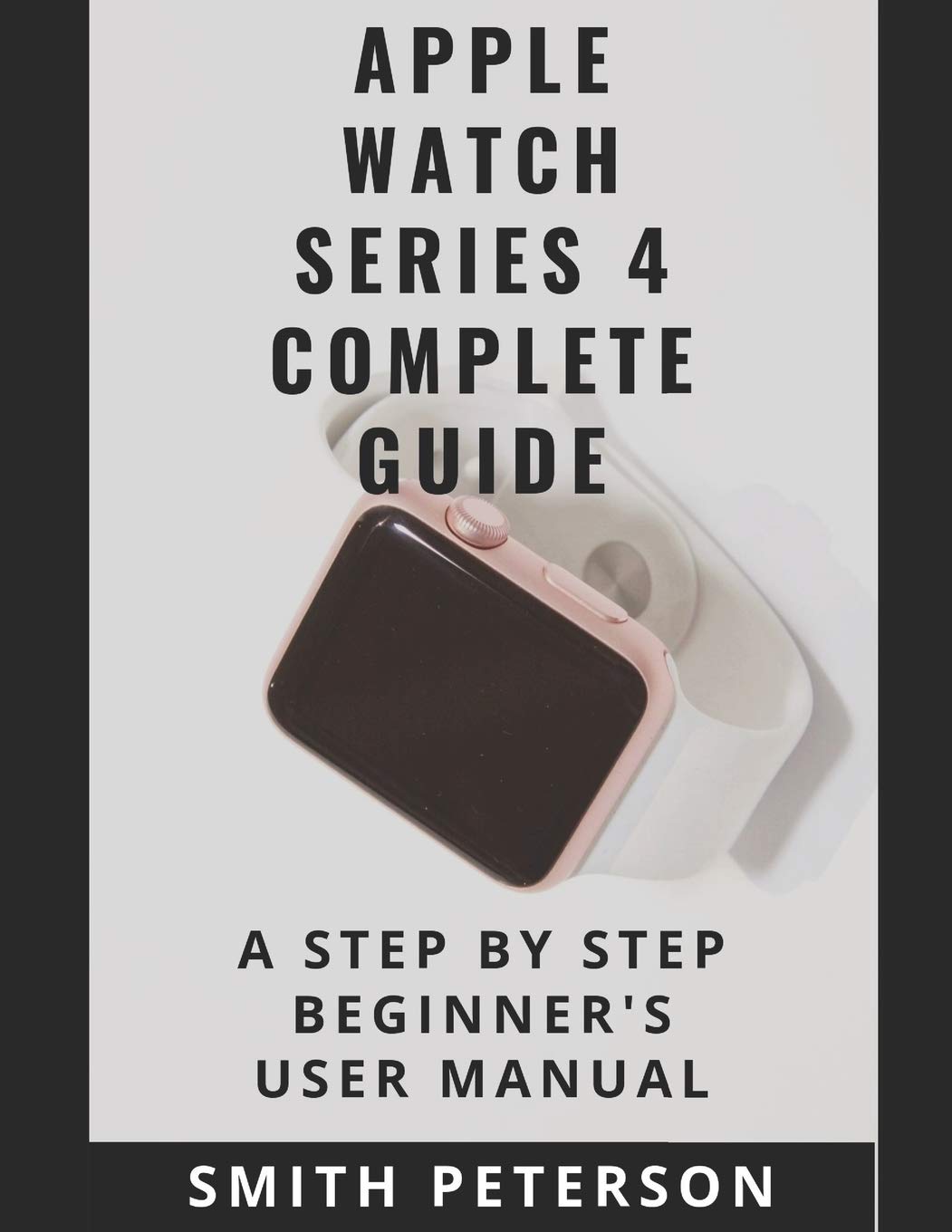
Figure 1: Front cover of the user manual, illustrating the Apple Watch Series 4.

Figure 2: Back cover of the user manual, displaying publication details and barcode.
Persediaan
Setting Up Your Apple Watch from Your iPhone
To begin using your Apple Watch Series 4, it must be paired and set up using a compatible iPhone. Ensure your iPhone is updated to the latest iOS version and has Bluetooth enabled.
- Power on your Apple Watch by pressing and holding the side button until the Apple logo appears.
- Bring your iPhone close to your Apple Watch. A pairing screen will appear on your iPhone. Tap "Continue".
- Letakkan iPhone anda supaya Apple Watch muncul di viewfinder on your iPhone's screen. This will pair the devices.
- Follow the on-screen instructions on your iPhone to complete the setup process, including choosing whether to set up for yourself or a family member, agreeing to terms and conditions, and creating a passcode.
- You will be prompted to sign in with your Apple ID, enable features like Siri, Apple Pay, and Activity tracking.
Installing Apps On Your Apple Watch
Apps can be installed directly from your Apple Watch or through the Watch app on your iPhone.
- From iPhone: Open the "Watch" app on your iPhone. Scroll down to the "Available Apps" section. Tap "Install" next to the app you wish to add.
- From Apple Watch: Open the App Store on your Apple Watch. Browse or search for apps. Tap "Get" or the price to download and install.
Mengendalikan Siri 4 Apple Watch Anda
Basics of the Apple Watch
The Apple Watch Series 4 features a Digital Crown for navigation, a side button for accessing the Dock and Apple Pay, and a touch-sensitive display.
- Mahkota Digital: Rotate to scroll, zoom, or adjust values. Press once to go to the watch face or app list. Double-press to switch between the last two apps. Press and hold to activate Siri.
- Butang Sisi: Press once to open the Dock (recently used apps). Double-press to activate Apple Pay. Press and hold to access power options, Medical ID, and Emergency SOS.
- Force Touch (Haptic Touch): Press firmly on the display to reveal additional options or menus within apps.
Menguruskan Aplikasi
Learn how to delete and uninstall applications from your Apple Watch.
- Memadamkan Apl: From the app list view (grid or list), press and hold an app icon until all icons jiggle. Tap the 'X' on the app you wish to delete, then confirm.
- Menyahpasang Apl: Apps can also be uninstalled via the Watch app on your iPhone. Go to "My Watch", scroll down to the app, tap it, and toggle off "Show App on Apple Watch".
Activity Tracking and Health
The Apple Watch Series 4 is equipped with advanced sensors to track your daily activity and monitor your health.
- Setting Up Activity History: Open the Activity app on your Apple Watch. Follow the prompts to set your daily Move, Exercise, and Stand goals. Your progress is displayed as three rings.
- Track Health & Fitness: The Health app on your iPhone, which syncs with your Apple Watch, provides detailed insights into your heart rate, workouts, and other health metrics. The Series 4 includes ECG capabilities and fall detection.
Media and Communication
Enjoy music and communicate effectively using your Apple Watch.
- Adding and Listening to Music: Music can be synced to your Apple Watch via the Watch app on your iPhone. Go to "Music" > "Add Music" and select playlists or albums. You can listen using Bluetooth headphones paired directly to your watch.
- Menggunakan Siri: Activate Siri by raising your wrist and speaking, pressing and holding the Digital Crown, or saying "Hey Siri". Siri can answer questions, send messages, set reminders, and control smart home devices.
Ciri Lanjutan
- Enabling Accessibility Features: Access accessibility options like VoiceOver, Zoom, Grayscale, and Reduce Motion through the Watch app on your iPhone under "Accessibility".
- Setting Up and Using Apple Pay: Open the Watch app on your iPhone, go to "Wallet & Apple Pay", and add your credit or debit cards. To use Apple Pay, double-press the side button and hold your watch near the contactless reader.
- New Hacks & Tricks: Explore various tips and tricks for optimizing your Apple Watch experience, such as using Walkie-Talkie, customizing complications, or setting up theatre mode.
Penyelenggaraan
Proper care and maintenance will extend the life of your Apple Watch Series 4.
- Pembersihan: Regularly clean your Apple Watch with a soft, lint-free cloth. If necessary, lightly dampen the cloth with fresh water. Avoid using soaps or abrasive materials.
- Tahan Air: The Apple Watch Series 4 is water resistant, not waterproof. It can be used for shallow-water activities like swimming in a pool or ocean. It should not be used for scuba diving, waterskiing, or other activities involving high-velocity water or submersion below shallow depth.
- mengecas: Use only Apple-approved charging accessories. Ensure the charging puck is clean and free of debris.
- Kemas Kini Perisian: Keep your Apple Watch software updated to the latest version of watchOS for optimal performance and security. Updates can be managed through the Watch app on your iPhone.
Menyelesaikan Masalah Biasa
This section addresses common issues you might encounter with your Apple Watch Series 4 and provides solutions.
- Watch Not Pairing: Ensure both devices have Bluetooth enabled, are charged, and are within range. Try restarting both the iPhone and Apple Watch.
- Aplikasi Tidak Memberi Respons: Force quit the app by pressing the side button, then rotating the Digital Crown to the app, swiping left, and tapping "Remove". Then reopen the app. If the issue persists, restart the watch.
- Longkang Bateri: Check for apps running in the background. Reduce screen brightness, disable "Raise to Wake", and limit background app refresh for non-essential apps.
- Isu Kesambungan (Wi-Fi/Selular): Ensure Wi-Fi is enabled on your iPhone and the watch is connected to a known network. For cellular models, verify your cellular plan is active and signal strength is adequate.
- Digital Crown Not Responding: Clean the Digital Crown by running it under warm, fresh water for 10-15 seconds while continuously pressing and rotating it.
For more detailed troubleshooting, refer to Apple's official support documentation or contact Apple Support.
Spesifikasi
| Ciri | Perincian |
|---|---|
| Penerbit | Diterbitkan secara bebas |
| Tarikh Penerbitan | 4 Oktober 2019 |
| Bahasa | Inggeris |
| Panjang Cetakan | 66 muka surat |
| ISBN-10 | 1697657648 |
| ISBN-13 | 978-1697657647 |
| Berat Barang | 8 auns |
| Dimensi | 8.5 x 0.15 x 11 inci |
Waranti dan Sokongan
For information regarding the warranty of your Apple Watch Series 4, please refer to the official Apple warranty documentation provided with your device or visit the official Apple Support webtapak. Terma dan syarat waranti mungkin berbeza mengikut wilayah.
For technical support, software updates, and additional resources, please visit the official Apple Support website or contact Apple customer service directly. Online resources include user guides, troubleshooting articles, and community forums.
Nota Penting: This manual is a third-party guide and does not replace official Apple documentation or support channels. Always refer to official Apple resources for the most accurate and up-to-date information regarding your device's warranty and support.