
pengenalan
This manual provides essential instructions and information for users of the Apple iPhone XS and iPhone XS Max. It covers initial setup, basic operation, key features of iOS 12, and tips for maximizing your device's potential. Please read this guide thoroughly to ensure proper use and understanding of your new iPhone.
Produk Selesaiview
The iPhone XS and iPhone XS Max represent a significant advancement in smartphone technology, featuring a powerful A12 Bionic chip, advanced camera systems, and an all-screen design. This manual serves as your guide to exploring these capabilities.
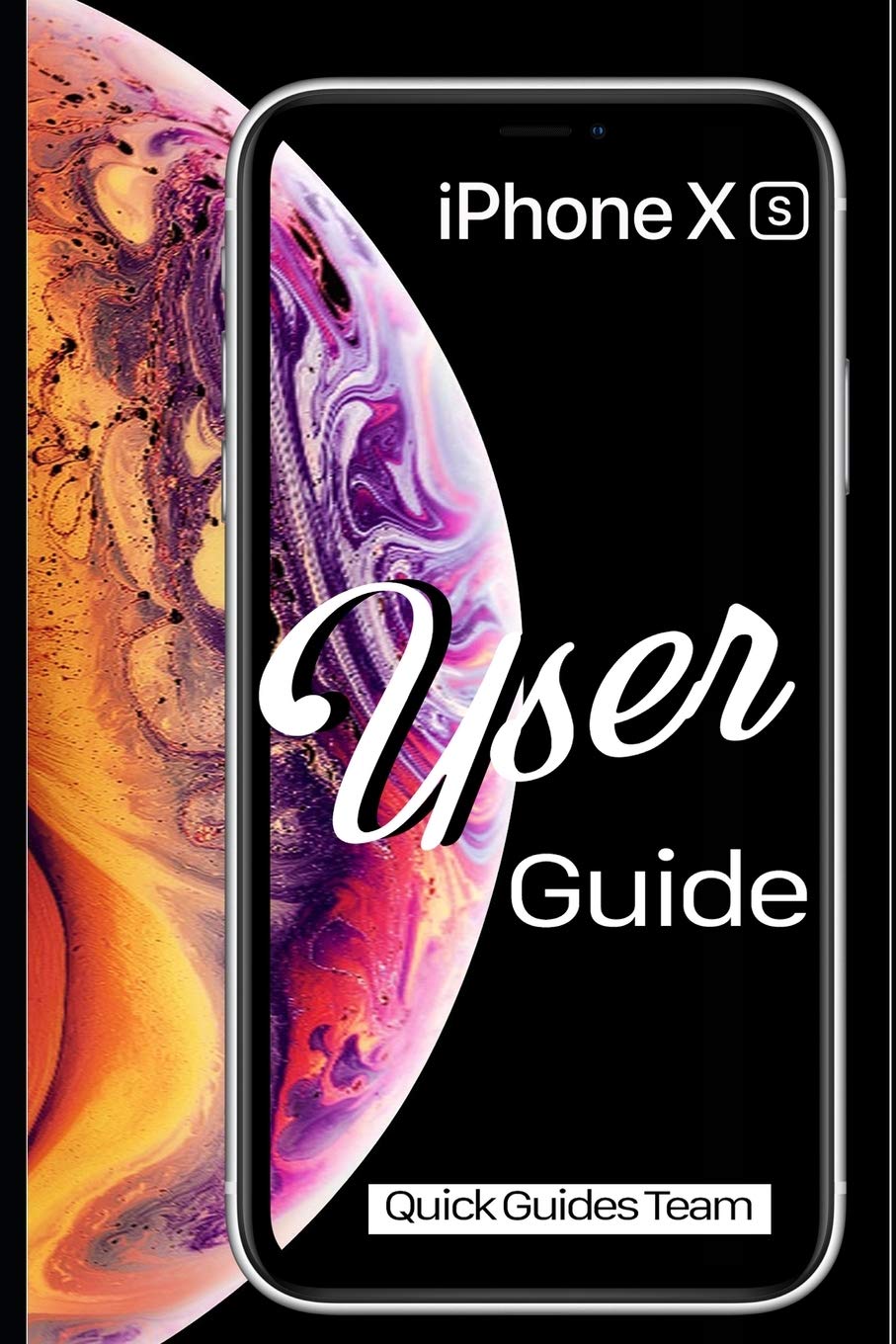
Image 1: Front cover of the Apple iPhone XS User Manual. This image displays the iPhone XS with its vibrant display and the manual's title.

Image 2: Back cover of the Apple iPhone XS User Manual. The back cover is plain black and includes the ISBN-13 barcode: 978-1091970465.
Persediaan
- Hidupkan kuasa: Tekan dan tahan butang sisi sehingga logo Apple muncul.
- Konfigurasi Awal: Ikut arahan pada skrin untuk memilih bahasa, rantau dan sambungkan ke rangkaian Wi-Fi anda.
- Persediaan ID Wajah: Configure Face ID for secure authentication and Apple Pay.
- Pemindahan Data: Choose to restore from an iCloud or iTunes backup, or set up as a new iPhone.
- ID Apple: Sign in with your existing Apple ID or create a new one. This is essential for accessing the App Store, iCloud, and other Apple services.
Operating Your iPhone XS
Basic Gestures and Navigation
- Ketik: Pilih item atau aktifkan butang.
- Swipe Up (from bottom edge): Pergi ke skrin Utama.
- Swipe Up and Pause (from bottom edge): View all open apps (App Switcher).
- Swipe Down (from top-right corner): Buka Pusat Kawalan.
- Swipe Down (from top-center): Buka Pusat Pemberitahuan.
- Cubit: Zum masuk atau keluar pada foto dan web muka surat.
Home Screen and Apps
The Home screen is where you access all your applications. You can organize apps into folders, search for apps using Spotlight Search (swipe down from the middle of the Home screen), and customize your app layout.
- Membuka Aplikasi: Tap an app icon.
- Closing Apps: From the App Switcher, swipe an app card upwards.
- App Store: Download new applications and games.
tetapan
The Settings app allows you to customize your iPhone's behavior, connectivity, and privacy. Key settings include:
- Wi-Fi & Bluetooth: Manage wireless connections.
- Pemberitahuan: Control how apps alert you.
- Paparan & Kecerahan: Adjust screen appearance.
- Bateri: Monitor battery usage and health.
- ID Wajah & Kod Laluan: Manage security settings.
Ciri Kamera
The iPhone XS camera system offers advanced photography capabilities. New photo modes and features in iOS 12 enhance your ability to capture stunning images and videos.
- Mod Potret: Create professional-looking photos with a depth-of-field effect.
- Smart HDR: Automatically capture more detail in highlights and shadows.
- Rakaman Video: Record 4K video at up to 60 fps.
Aplikasi Penting
- Safari: Browse the internet securely.
- Mel: Manage your email accounts.
- Mesej: Send and receive text messages and iMessages.
- FaceTime: Make video and audio calls to other Apple users.
- Files: Access and organize documents across various cloud services.
- Find My: Locate your devices or share your location with friends.
Penyelenggaraan
- Pembersihan: Gunakan kain lembut dan tidak berbulu untuk membersihkan iPhone anda. Elakkan bahan yang melelas atau bahan kimia yang keras.
- Kemas Kini Perisian: Regularly update iOS to the latest version for security enhancements and new features. Go to Tetapan > Umum > Kemas Kini Perisian.
- Penjagaan Bateri: Optimize battery life by managing background app refresh, reducing screen brightness, and enabling Low Power Mode when needed.
- Sandaran Data: Regularly back up your iPhone to iCloud or a computer using iTunes to prevent data loss.
Menyelesaikan masalah
- Peranti Tidak Responsif: If your iPhone is unresponsive, perform a force restart: Press and quickly release the Volume Up button, then press and quickly release the Volume Down button, then press and hold the Side button until you see the Apple logo.
- Apl Tidak Menjawab: Close the app from the App Switcher and reopen it. If the issue persists, restart your iPhone.
- Isu Ketersambungan: For Wi-Fi or Bluetooth problems, try toggling the respective setting off and on, or restart your iPhone. You can also reset network settings via Tetapan > Umum > Pindahkan atau Tetapkan Semula iPhone > Tetapkan Semula > Tetapkan Semula Tetapan Rangkaian.
- Gangguan Perisian: Ensure your iOS is up to date. If problems persist, consider restoring your iPhone from a backup or performing a factory reset (Settings > General > Transfer or Reset iPhone > Erase All Content and Settings) after backing up your data.
Spesifikasi
| Ciri | Perincian |
|---|---|
| Model | iPhone XS, iPhone XS Max |
| Sistem Operasi | iOS 12 (at time of manual publication) |
| Dimensions (iPhone XS) | 143.6 x 70.9 x 7.7 mm (5.65 x 2.79 x 0.30 inci) (Approximate, based on general knowledge) |
| Weight (iPhone XS) | 177 gram (6.24 auns) (Approximate, based on general knowledge) |
| ISBN-10 (Manual) | 1091970467 |
| ISBN-13 (Manual) | 978-1091970465 |
| Publication Date (Manual) | 29 Mac 2019 |
Note: Device specifications are approximate and may vary. Refer to Apple's official website for the most accurate and up-to-date product details.
Waranti dan Sokongan
For detailed warranty information, please refer to the official Apple warranty documentation included with your device or visit the official Apple website. Apple provides comprehensive support resources, including online knowledge bases, community forums, and direct customer service.
- Sokongan dalam talian: melawat support.apple.com for troubleshooting guides, FAQs, and service options.
- Perkhidmatan Dibenarkan: For hardware issues, contact an authorized Apple service provider.